Guides

Software comparisons, tool reviews, workflow recommendations, and practical technology buying guides.

  • monday.com vs. ClickUp: Which Fits a Small Team?

    monday.com vs. ClickUp: Which Fits a Small Team?

    A small team does not need the project-management platform with the most capability. It needs the platform that consumes the least attention while keeping work visible.

    That makes monday.com vs. ClickUp a decision about coordination tax. monday.com usually makes shared work easier to scan through boards, columns, status labels, and dashboards. ClickUp usually packs more work functions into one configurable hierarchy, including tasks, Docs, dashboards, time tracking, goals, chat, and automations.

    For a small team, the risk is different on each side. monday.com can become a collection of attractive boards that do not connect cleanly. ClickUp can become a powerful workspace that asks too many setup questions. The better fit is the system the team can still understand on a busy Friday afternoon.

    The short verdict

    • Choose monday.com when the main need is visual coordination, fast status scanning, straightforward board-based processes, and manager-friendly reporting.
    • Choose ClickUp when the team wants to consolidate more functions, support several workflow types, track time, connect Docs to tasks, or configure a deeper operating workspace.
    • Choose neither yet when the process has no agreed owner, stages, completion rule, or archive policy. Software will preserve that ambiguity rather than solve it.

    Do not make the decision from a polished demo. Run the same small-team week in both products and measure the coordination tax.

    The Small-Team Coordination Tax

    Coordination tax is the work required to keep work understandable. It includes setup, status updates, navigation, permissions, reporting, cleanup, and explaining the system to someone who did not build it.

    Test six moments using one real but non-sensitive project.

    1. A new request arrives

    Create a realistic request with an owner, due date, priority, supporting document, and one missing detail. Measure how easily the team can capture the request without creating an incomplete task that silently enters the workload.

    2. The work changes shape

    Add a subtask, dependency, approval, and change in priority. Small teams rarely execute the original plan exactly. The platform should absorb the change without forcing the team to rebuild the project structure.

    3. A teammate asks, “What needs attention?”

    Give a teammate two minutes to locate overdue work, blocked work, the next deadline, and the person who needs help. Record how many views, filters, dashboards, or explanations are required.

    4. An outside collaborator joins

    Invite a test guest to one project or document. Confirm that the guest can contribute without seeing unrelated work. Permissions should be tested with a separate account rather than assumed from an administrator’s view.

    5. An automation misfires

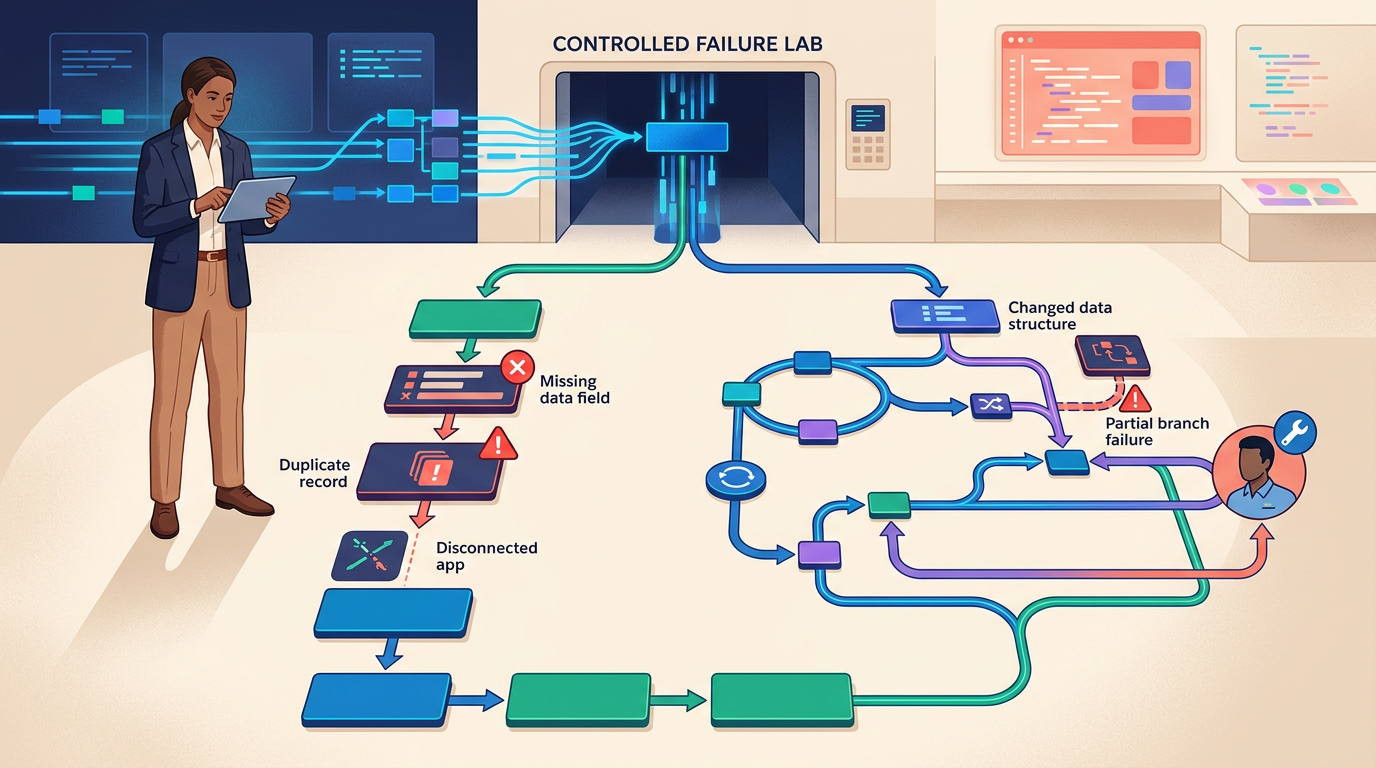
    Create one useful automation, then cause its trigger or condition to produce the wrong result. Determine whether the team can find the rule, understand its scope, identify affected items, and correct the workflow without the original builder.

    6. The project closes

    Complete the project, preserve the final decision and reusable lesson, archive the work, and verify that active views no longer show it. A system that launches work easily but never removes completed clutter will become slower every month.

    Download the Small-Team Coordination Tax Workbook

    Use the workbook to define one representative project, run the same six-moment pilot in monday.com and ClickUp, measure maintenance time, test guest access and automation recovery, estimate first-year operating cost, and document the final decision.

    • Team and Project Definition
    • Six-Moment Pilot
    • Two-Minute Visibility Test
    • Workspace Governance Review
    • Cost and Administration Model
    • Decision Record

    monday.com: the visual coordination layer

    monday.com is strongest when the team wants a shared board that makes ownership, dates, priority, and status visible without extensive explanation. Its board model can make recurring operational processes approachable for marketing, client delivery, recruiting, operations, and other nontechnical teams.

    Boards can connect to dashboards, and monday workdocs can sit alongside structured work. Workdocs are available as main, private, or shareable documents with different collaboration boundaries. Shareable workdocs allow invited guests to access the specific document without seeing unrelated account information.

    Dashboard visibility also follows connected-board permissions. Two people can see different numbers in the same dashboard when their access to boards, columns, or items differs. That is useful for security, but it can create reporting disputes unless owners understand the permission model.

    • Best fit: small teams that want visual process boards, quick status scanning, standardized recurring work, and dashboards that managers can interpret.
    • Watch for: board sprawl, duplicated columns, disconnected dashboards, seat packaging, plan-specific automation limits, and reports that vary by viewer permissions.
    • Pilot question: Can a new teammate understand the board and update the correct item without a live walkthrough?

    ClickUp: the configurable work operating system

    ClickUp is strongest when the team wants tasks, documents, dashboards, goals, time tracking, chat, forms, and automations in one environment. Its hierarchy can support different work types without forcing every process into the same board design.

    ClickUp automations use triggers, optional conditions, and actions. Their scope follows the workspace hierarchy: an automation created at a List affects that List, while one created at a Folder can affect Lists and subfolders beneath it. Feature availability and limits vary by plan and role.

    Automations are location-specific, which makes documented placement important. The management view can search, filter, rename, describe, and inspect active or inactive automations, but operators still need to know where a rule was created.

    ClickUp also includes native time tracking and timesheets, with availability and limits varying by plan. Teams can track time on tasks, edit entries, report on tracked time, and control guest access to time tracking.

    • Best fit: small teams that want to consolidate several work tools or need different workflow types, Docs, time data, detailed hierarchy, and configurable automations.
    • Watch for: setup debt, too many statuses and fields, hierarchy confusion, hidden location-specific rules, and features the team enables but never governs.
    • Pilot question: Can someone locate the correct Space, Folder, List, Doc, dashboard, and automation without knowing the builder’s mental model?

    Board-first versus hierarchy-first

    The most important difference is not the number of views. It is the mental model.

    monday.com is board-first. A team often begins with a process board, adds columns and groups, then connects boards to dashboards, workdocs, forms, and automations.

    ClickUp is hierarchy-first. A team places work inside Spaces, Folders, Lists, tasks, subtasks, Docs, dashboards, and other workspace locations. The hierarchy can separate several work systems, but the team must agree on where each kind of work belongs.

    Choose the model that matches how the team already explains work. If people naturally say “open the client delivery board,” monday.com may feel clearer. If people need separate layers for departments, programs, projects, tasks, documents, and time, ClickUp may fit better.

    Which tool fits common small-team situations?

    A five-person marketing team

    Begin with monday.com when campaigns follow a repeated sequence and the team wants clear owners, dates, status labels, and an executive dashboard. Begin with ClickUp when briefs, Docs, time tracking, content production, campaign tasks, and several workflow types should live in one workspace.

    A small agency with billable work

    Begin with ClickUp when native time tracking, timesheets, task-linked Docs, and client delivery hierarchy are central. Begin with monday.com when the agency primarily needs repeatable client boards and simple portfolio visibility, while time and documentation already live in trusted specialist tools.

    An operations team managing recurring processes

    Begin with monday.com when processes can be represented consistently as rows, owners, dates, statuses, and exceptions. Begin with ClickUp when the team manages different process families that require separate structures, Docs, forms, and nested work.

    A product or software-adjacent team

    Begin with ClickUp when sprints, task types, dependencies, time data, technical Docs, or engineering-adjacent hierarchy matter. Begin with monday.com when the primary need is cross-functional launch visibility rather than replacing a dedicated development system.

    The real cost is not the listed seat price

    Pricing, packaging, AI credits, automation allowances, and minimum or bundled seat rules can change. Compare the current official pricing pages using the exact number of people who need paid access, the required plan features, guest rules, and expected automation volume.

    Calculate three costs:

    • License cost: paid seats or seat bundles, add-ons, AI charges, and required plan tier
    • Setup cost: hierarchy or board design, templates, permissions, data migration, dashboards, and training
    • Coordination cost: weekly status upkeep, automation troubleshooting, cleanup, access changes, and explaining the workspace

    A small difference in subscription price can disappear if one system requires two additional administration hours each month. Use current vendor quotes rather than copied comparison-site pricing.

    Review the current monday.com pricing page and ClickUp pricing page before purchasing.

    The two-minute visibility test

    Ask a teammate who did not configure the workspace to answer these questions within two minutes:

    1. What is overdue?
    2. What is blocked?
    3. What is due next?
    4. Who needs help?
    5. Which project is at risk?
    6. Where is the current brief or decision?

    Record the time, wrong locations opened, missing data, and questions asked. Do not rescue the tester with hints. The result exposes whether the workspace is genuinely visible or merely familiar to the builder.

    Governance for a team without a full-time administrator

    • Name one workspace owner and one backup.
    • Limit who can create top-level boards, Spaces, Folders, statuses, and global templates.
    • Maintain a short naming convention for projects and recurring processes.
    • Document where source files, decisions, tasks, and completed work belong.
    • Record every active automation with its location, purpose, owner, and failure response.
    • Review guest access and departed users monthly.
    • Archive completed projects on a defined schedule.
    • Delete or merge fields, views, and templates that receive no meaningful use.

    If the team is still deciding among several project platforms, our Best Project Management Tools guide widens the shortlist. If the choice has narrowed to a more standardized project system versus ClickUp’s broader workspace, the Asana vs. ClickUp comparison covers that different trade-off.

    Security and sharing checks

    • Test guest access with a separate account.
    • Confirm whether dashboards display different results because connected work is permission-limited.
    • Restrict integrations and automation publishing to approved owners.
    • Review what connected applications can read, write, and retain.
    • Separate confidential customer or employee information from broadly shared boards and tasks.
    • Test export, ownership transfer, deactivation, and deletion before rollout.
    • Verify plan-specific controls for single sign-on, provisioning, audit history, roles, and data residency when required.

    Common buying mistakes

    • Choosing the prettier demo: The demo does not include three months of clutter.
    • Counting features instead of workflows: Unused capability still creates configuration and training decisions.
    • Copying a complex template: The team inherits someone else’s terminology and exceptions.
    • Automating before the process stabilizes: Rules begin changing noisy or incomplete work automatically.
    • Ignoring closure: Completed work remains in active views and weakens reporting.
    • Assuming one dashboard is one truth: Permission differences can change what users see.
    • Leaving hierarchy or boards ungoverned: Every person invents a new home for similar work.

    Final recommendation

    Choose monday.com when a small team needs visual process clarity, quick adoption, and shared boards that managers can scan. Choose ClickUp when the team needs a broader configurable workspace and is willing to govern hierarchy, Docs, time tracking, statuses, and automations.

    Then measure the coordination tax. The best platform is the one that makes the next piece of work obvious without requiring the team to become experts in the tool.

    How this comparison was prepared

    This editorial comparison was prepared from current vendor documentation and a small-team workflow method focused on request intake, change handling, visibility, guest access, automation recovery, project closure, administration, security, and total operating cost. It does not claim a controlled head-to-head implementation study. Product features, plans, pricing, and limits change, so verify critical requirements and run the same representative project before purchasing.

  • Asana vs ClickUp: Which Fits Your Team?

    Asana vs ClickUp: Which Fits Your Team?

    The wrong project-management tool rarely fails on day one. It fails three months later, when nobody remembers why a custom field exists, guest access has become confusing, dashboards disagree, and the person who built the workspace is too busy to maintain it.

    That is why the most useful way to compare Asana and ClickUp is not to count features. It is to ask what kind of system your team can keep healthy after launch.

    Asana is usually the better choice when the team needs a consistent way to coordinate projects without turning the platform into a major administration responsibility. ClickUp is usually the better choice when the team wants to consolidate more work in one place and has an owner who can govern a highly configurable workspace.

    Two teams, two very different mistakes

    Imagine a 12-person marketing team. Its work moves through predictable stages: request, brief, production, review, approval, launch, and reporting. The team already uses a separate document system and does not track billable hours. What it needs most is consistency. ClickUp may offer more ways to configure the workspace, but many of those choices would solve problems this team does not have. Asana is likely the cleaner fit.

    Now imagine a 12-person agency that manages recurring client work, writes briefs, tracks time, builds dashboards, stores working documents, and runs several types of delivery process. Its current problem is fragmentation. If someone can own the setup and keep it orderly, ClickUp has a stronger case because consolidation itself creates value.

    The marketing team would make a mistake by buying flexibility it does not need. The agency would make a mistake by choosing simplicity that leaves its work scattered across too many systems.

    Start with the constraint, not the product

    Before opening either vendor’s feature page, finish this sentence:

    Our work breaks down because ____________________.

    Your answer should describe an operating problem, not a desired feature. Examples include:

    • Requests arrive through too many channels.
    • People cannot see who owns the next step.
    • Managers spend hours assembling status updates.
    • Every department uses a different process.
    • Documents, tasks, time records, and decisions live in separate tools.
    • Client access is difficult to control.
    • The current system requires too much manual upkeep.

    If the problem is inconsistent execution, Asana deserves the first pilot. If the problem is fragmented work, ClickUp deserves the first pilot. That is a starting hypothesis, not a final verdict.

    The central trade: workflow discipline or workspace range

    Asana is workflow-first. Projects, tasks, dependencies, forms, rules, approvals, portfolios, goals, workload, and reporting sit at the center of the experience. That makes it well suited to teams that want a recognizable path from request to completion.

    ClickUp is workspace-first. Spaces, Folders, Lists, tasks, Docs, dashboards, goals, time tracking, forms, chat, and sprint features give teams more latitude to shape the environment around their work. The upside is range. The downside is that somebody must decide how the pieces should fit together.

    This distinction matters more than a head-to-head list of checkmarks. A feature creates value only when it helps the team complete work with less confusion, less delay, or less duplication.

    The Monday-morning test

    Picture a new employee signing in on Monday morning. No one is available to give a tour. Could that person answer these questions?

    • Where does a new request go?
    • Which view shows today’s priorities?
    • What does each status mean?
    • Where is the current brief or supporting document?
    • Who can approve the work?
    • Which dashboard is authoritative?
    • What should be archived rather than duplicated?

    Asana tends to have the advantage when the goal is to make one project method easier to recognize across teams. ClickUp can pass the same test, but it depends more heavily on thoughtful defaults, restrained configuration, and internal documentation.

    The Friday-afternoon test

    Now picture a manager preparing the weekly update late Friday. The work is done, but the story is hard to assemble. The manager needs to see blocked tasks, slipping dates, team capacity, launch risk, and work awaiting approval.

    Both platforms can support reporting, but the useful question is how much design is required before the report becomes trustworthy. Asana is attractive when leaders want consistent portfolio and project visibility. ClickUp is attractive when the organization wants more configurable dashboards drawing from several kinds of work. In either platform, a beautiful dashboard is worthless if teams define fields and statuses differently.

    The owner-departs test

    This is the test most buying guides skip. Suppose the person who designed the workspace leaves tomorrow. Can the team still explain:

    • Why the hierarchy is organized this way
    • Which templates are approved
    • Who can add fields and statuses
    • How guest access is reviewed
    • Where automation failures appear
    • Which integrations are business-critical
    • How inactive work is archived
    • What survives an export

    If the answer is no, the team does not own the system. One employee does. Asana’s narrower focus can reduce this key-person risk. ClickUp can be equally sustainable, but only when its configuration is documented and governed.

    Where Asana has the stronger case

    Asana is likely to fit better when most of the following statements are true:

    • The team wants a shared project language across departments.
    • Adoption speed matters more than maximum configurability.
    • Requests, dependencies, reviews, approvals, and status reporting are the core needs.
    • The organization already has good tools for documents, chat, time tracking, or software development.
    • Managers need cross-project visibility without designing a highly customized workspace.
    • No one has significant time available for ongoing system administration.

    Asana is not maintenance-free. Templates, rules, forms, access, and reporting definitions still need owners. Its advantage is that a focused project model can make standardization easier to preserve.

    Where ClickUp has the stronger case

    ClickUp is likely to fit better when most of these statements are true:

    • The team wants tasks, Docs, dashboards, time tracking, goals, forms, or sprint work in one environment.
    • Different groups genuinely need different workflow structures.
    • Reducing tool switching would save measurable time or eliminate duplicate entry.
    • A workspace owner can manage hierarchy, naming, permissions, templates, and cleanup.
    • The organization is willing to document how configuration decisions are made.
    • The team will retire overlapping tools rather than simply adding another one.

    ClickUp’s range is valuable when it replaces real friction. If every old tool remains in place, the organization may gain another interface without gaining a simpler operating model.

    Price is the easy number. Administration is the hidden one.

    Pricing changes, so confirm the vendor pages before purchasing. The figures below were reviewed on November 9, 2026.

    • Asana Personal is free for one or two users.
    • Asana Starter is listed at $10.99 per user per month with annual billing, or $13.49 with monthly billing.
    • Asana Advanced is listed at $24.99 per user per month with annual billing, or $30.49 with monthly billing.
    • ClickUp Free Forever includes unlimited free members, subject to storage and feature limits.
    • ClickUp Core is listed at $9 per user per month with annual billing, or $12 with monthly billing.
    • ClickUp Business is listed at $17 per user per month with annual billing, or $25 with monthly billing.

    Using those annual rates and excluding taxes, discounts, add-ons, and AI-related charges, 10 paid seats cost about $1,319 per year on Asana Starter and $1,080 per year on ClickUp Core. The difference is roughly $239.

    That is not enough information to declare ClickUp cheaper. If one platform requires even two additional administration hours each month, the labor can exceed the license difference. Price the system you will operate, not just the seats you will buy.

    Check the current Asana pricing and ClickUp pricing for plan limits, billing terms, AI packaging, and regional availability.

    A five-scene pilot beats another hour of comparison

    Give both platforms the same work. Use 25 to 50 realistic tasks, five representative users, and one process that matters. Then run these scenes.

    Scene 1: A request arrives incomplete

    Submit a request with a missing deadline or vague description. Does the intake process prevent bad work from entering the system, or does someone have to repair it manually?

    Scene 2: A dependency slips

    Delay one task that blocks three others. Can the owner see the downstream effect and communicate it without rebuilding the plan?

    Scene 3: A client joins

    Invite a separate test account. Confirm that the guest sees the intended project, files, comments, and approvals without gaining access to unrelated work.

    Scene 4: An automation fails

    Trigger an exception on purpose. Determine who is notified, what information appears, and whether the team can recover without silently losing work.

    Scene 5: The team leaves

    Export the representative project. Inspect tasks, comments, fields, attachments, dependencies, users, dates, and completed history. A platform is easier to trust when you understand what leaving it would require.

    Download the Asana vs. ClickUp Team Fit Workbook to record requirements, pilot observations, ownership, weighted scores, and annual operating cost. A missing hard requirement should stop the decision even when one product earns the higher total score.

    Do not let AI features choose the platform

    Both vendors continue to add AI-assisted capabilities. The packaging can change faster than a team can complete procurement, so treat AI as a test case rather than the headline.

    • What information can the feature access?
    • Which plan, credit allowance, or add-on is required?
    • Can administrators control availability and permissions?
    • How will people review generated output?
    • Does the feature remove a measured bottleneck?

    Turning meeting notes into assigned work may save time. Generating another summary nobody reads will not. A useful AI feature strengthens a sound workflow; it does not rescue a confusing workspace.

    Integrations need an error plan

    An integration directory tells you what can connect. It does not tell you whether the connection is reliable enough for the work. Confirm which direction records move, which plan is required, how duplicates are handled, what permissions the connection receives, and what happens after a failure.

    If integrations will carry a large share of the process, our Zapier vs. Make comparison examines the related trade between simpler app-to-app automation and deeper workflow control.

    The decision in one sentence

    Choose Asana when the team needs a project system it can standardize; choose ClickUp when it needs a broader work system it is prepared to govern.

    If that still feels too close, do not add more columns to a feature comparison. Run the five-scene pilot. Watch where users hesitate, where administrators intervene, and where information becomes unreliable. The better platform is the one that stays understandable when the initial setup excitement is gone.

    How this comparison was prepared

    This editorial comparison uses current vendor documentation and a workflow-fit method focused on adoption, governance, maintenance, integrations, migration, and total operating cost. It does not claim laboratory testing or long-term production use of either platform. Product features, limits, and prices can change. Confirm critical requirements with each vendor and test them in your own workspace before purchasing.

  • Best Note-Taking Apps for Teams: From Notes to Knowledge

    Best Note-Taking Apps for Teams: From Notes to Knowledge

    A team can take excellent notes and still lose the decision.

    The meeting summary exists. The transcript is searchable. The project brief looks polished. Yet two weeks later, nobody knows which option was approved, who owns the follow-up, or which page is authoritative.

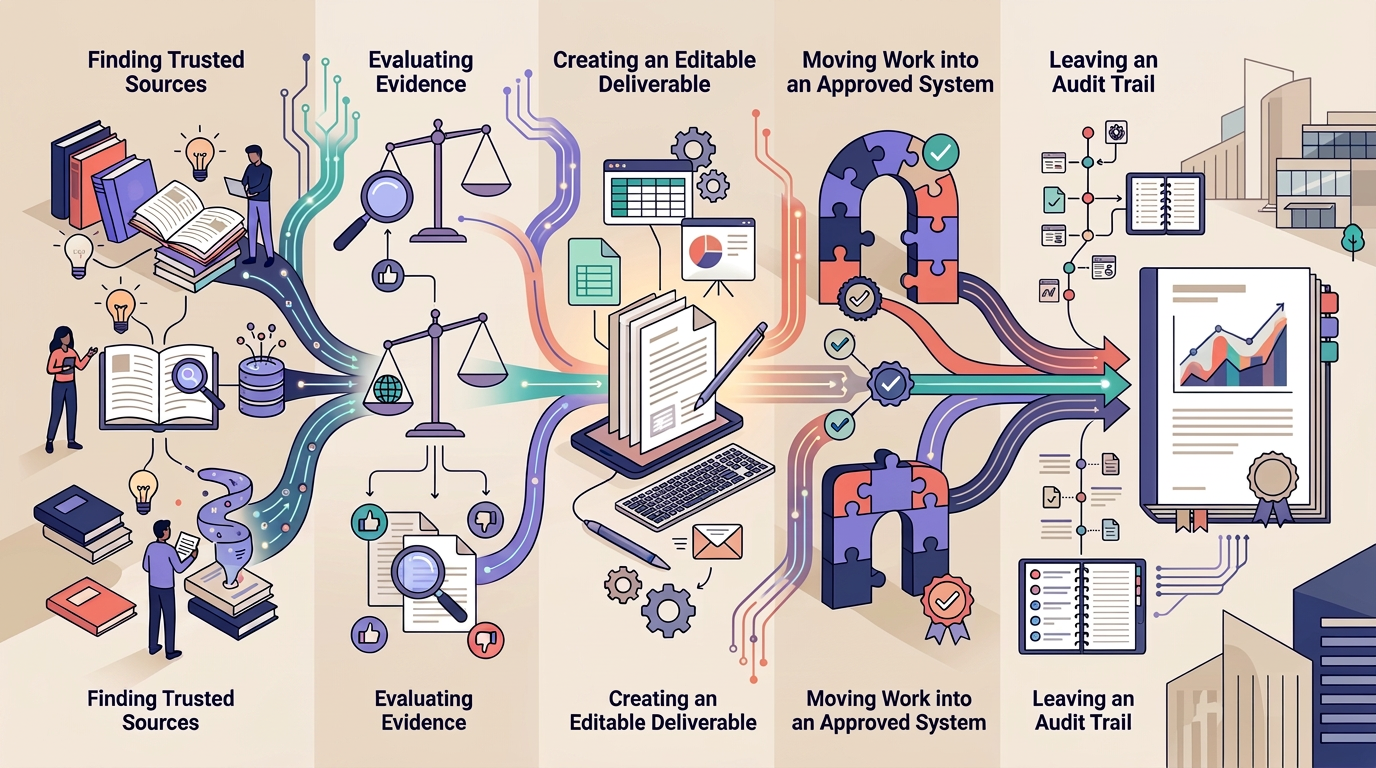
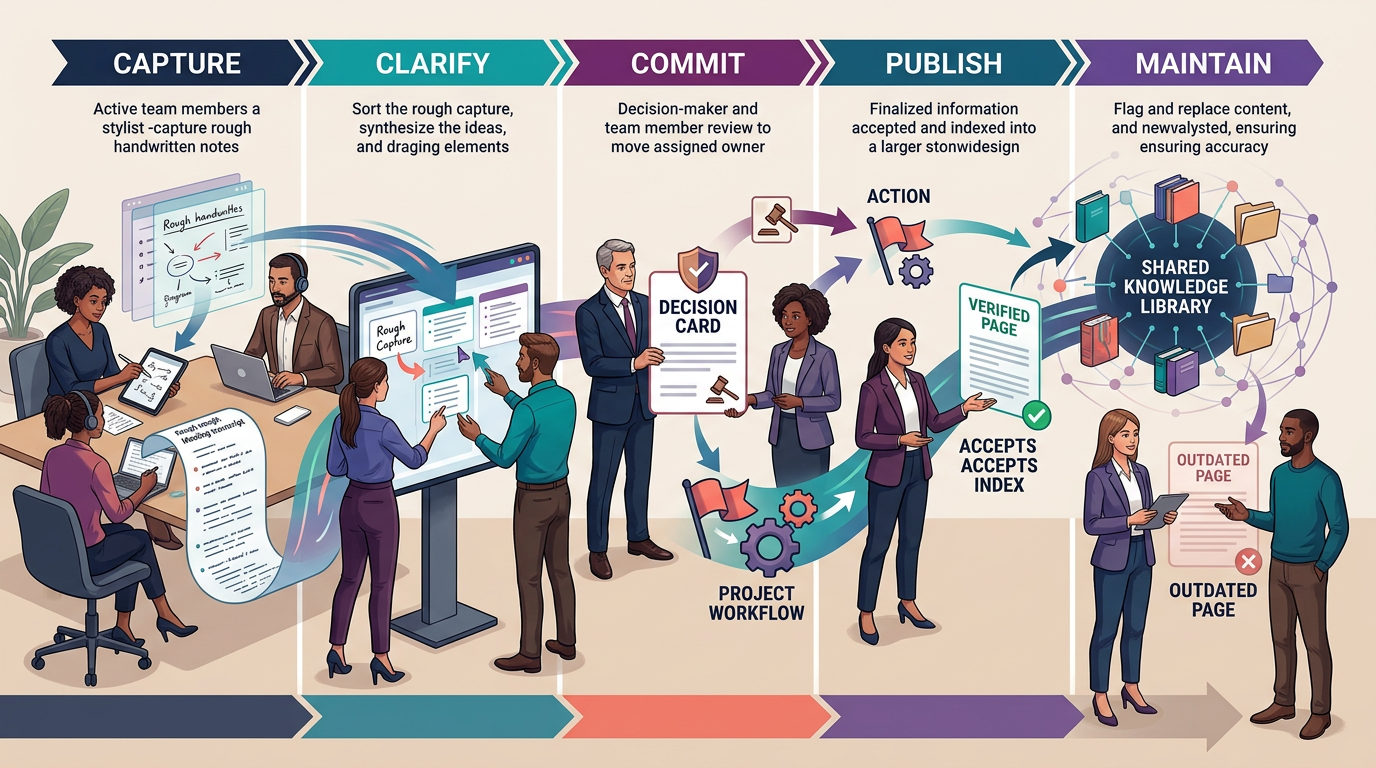
    That is why the best note-taking app for a team is not simply the fastest place to type. It is the tool that can move information through a five-stage Note-to-Knowledge Relay: capture, clarify, commit, publish, and maintain.

    The short assignment

    • Choose Fellow when meeting discipline, agendas, action items, AI notes, and organization-level controls are the main need.
    • Choose Fireflies when searchable transcripts, automated summaries, conversation intelligence, and workflow integrations matter most.
    • Choose Notion when notes must graduate into connected project documentation, databases, and a verified team wiki.
    • Choose Slite when the team wants a focused knowledge base with owners, review cycles, cited answers, and maintenance workflows.
    • Choose Coda when notes need to become interactive team hubs, structured tables, lightweight applications, and automated workflows.
    • Choose Microsoft Loop when collaborative notes and live components should remain synchronized across Microsoft 365 work.
    • Choose Google Docs when broad familiarity, fast collaboration, comments, version history, offline access, and external sharing matter more than a specialized knowledge system.

    Many teams need two layers: a meeting-capture tool and a trusted documentation home. Do not force one product to perform both jobs if the handoff between them can be governed clearly.

    The Note-to-Knowledge Relay

    Use one real meeting or project handoff to test every candidate. The note should survive five stages without losing meaning, ownership, or trust.

    Stage 1: Capture

    Record the discussion with the least reasonable friction. Test live typing, collaborative editing, calendar context, transcription, mobile capture, and offline behavior as appropriate. Capture should preserve useful context without collecting more sensitive material than the team needs.

    Stage 2: Clarify

    Convert raw notes into a concise summary. Separate facts, proposals, unresolved questions, risks, and assumptions. If AI produces the summary, compare important claims with the transcript or source material before treating them as accurate.

    Stage 3: Commit

    Extract decisions and actions from the chronology. Each decision needs a clear statement, date, rationale, consequences, and owner. Each action needs one accountable person and a destination where work will be tracked.

    Stage 4: Publish

    Move durable knowledge into the team’s approved source of truth. Apply the correct permissions, link related projects, and make the result findable without forcing colleagues to search every meeting record.

    Stage 5: Maintain

    Assign an owner and review trigger. Update, replace, merge, or archive the page when the decision or process changes. A perfectly organized note becomes harmful when people continue following it after it is obsolete.

    Download the Note-to-Knowledge Relay Workbook

    Use the workbook to define the note-taking job, run the five-stage relay across shortlisted apps, test decision retrieval, review permissions and retention, estimate operating cost, and document the final choice.

    • Workflow Definition
    • Five-Stage Relay
    • Decision Retrieval Test
    • Security and Retention Review
    • Weighted Scorecard
    • Cost and Ownership
    • Decision Record

    Fellow: the meeting-discipline layer

    Fellow is the strongest starting point when recurring meetings need agendas, AI notes, action tracking, and administrative governance. It is designed around the meeting lifecycle rather than general-purpose document storage.

    That focus is useful for organizations trying to standardize how meetings are prepared, captured, and followed up. Current enterprise controls include separate retention periods for recordings, transcripts, and AI Notes, including zero-day retention for recordings or transcripts when the organization wants to keep only the processed note.

    • Best fit: meeting-heavy organizations that want consistent agendas, follow-up, AI-assisted notes, and centralized controls.
    • Watch for: consent and recording rules, retention configuration, whether action items reach the real task system, and whether durable decisions leave the meeting archive.
    • Relay test: run a recurring meeting, verify important statements, assign actions, publish one decision outside the chronology, and confirm retention behaves as configured.

    Review the current Fellow product information and retention controls before rollout.

    Fireflies: the searchable conversation layer

    Fireflies is a strong starting point when the team needs to record, transcribe, summarize, search, and analyze conversations across meeting platforms and other audio sources. It can generate summaries, identify action items, support custom note formats, and connect conversation output to CRMs and project tools.

    The advantage is breadth of capture and retrieval. The risk is confusing a searchable meeting archive with approved organizational knowledge. Transcripts preserve what was said; they do not establish what the organization ultimately decided.

    • Best fit: sales, recruiting, research, customer, and operational teams that need searchable conversation records and structured summaries.
    • Watch for: recording consent, transcript accuracy, speaker attribution, retention, sensitive conversations, summary-template governance, and downstream duplicate tasks.
    • Relay test: locate a specific statement by speaker and time, verify the summary, extract the final decision, and publish only the approved result.

    Check the current Fireflies AI Notetaker overview and summary controls before deployment.

    Notion: the connected documentation workspace

    Notion makes the strongest case when notes need to connect with projects, databases, reference pages, and a maintained team wiki. Meeting notes can remain linked to the relevant initiative while durable decisions and procedures move into separate authoritative pages.

    Notion wikis support page owners and verification. Verification can expire and notify the owner, while verified pages receive a visible indicator in mentions and search. Those capabilities make Notion useful when the team is willing to govern the workspace rather than treat it as an unlimited canvas.

    • Best fit: teams that want notes, projects, databases, and maintained knowledge in one configurable workspace.
    • Watch for: page sprawl, duplicate truth, permissions, database complexity, and the need for active workspace ownership.
    • Relay test: capture a meeting, extract a decision, connect it to a project, assign a page owner, set verification, and retrieve the approved page through search.

    If Notion is already the chosen documentation home, use our guide on how to set up a team wiki in Notion to build the ownership and maintenance layer.

    Slite: the focused knowledge-maintenance system

    Slite is positioned less as a blank note canvas and more as a knowledge base that stays current. Its current product emphasizes document owners, verification cycles, scheduled reviews, cited answers, connected sources, and proposed updates that require human approval.

    That focus is useful for teams whose main problem is not capturing more information but maintaining a trustworthy source of truth.

    • Best fit: remote and distributed teams that want a focused company knowledge base with lower structural overhead than a highly configurable workspace.
    • Watch for: connector scope, AI-answer quality, ownership discipline, migration needs, and whether meeting capture requires a separate tool.
    • Relay test: publish a decision, assign an owner and review cycle, ask a natural-language question, inspect citations, and process a proposed update.

    Review the official Slite knowledge-base overview for current maintenance and search capabilities.

    Coda: the document that becomes a workflow

    Coda combines documents, structured tables, integrations, automations, and interactive controls. That makes it useful when a meeting note or project brief needs to become a living team hub rather than remain a static page.

    A product team can connect notes to roadmaps, decisions, risks, votes, status views, and actions inside one doc. The trade-off is design responsibility. A powerful doc can become a custom application that only its builder understands.

    • Best fit: product, operations, and cross-functional teams that want notes connected to structured data and interactive workflows.
    • Watch for: maker dependency, disconnected copies, permissions, Pack connections, automation ownership, and migration complexity.
    • Relay test: turn a meeting note into a decision table, project update, and assigned action while ensuring another operator can understand the doc.

    Review the current Coda product overview before designing a pilot.

    Microsoft Loop: the portable collaboration layer

    Microsoft Loop is a strong choice when notes, lists, tables, and tasks need to remain synchronized across Microsoft 365 work. Loop components are portable units that stay current when shared through supported applications, including Teams, Outlook, OneNote, and Whiteboard.

    Loop pages and workspaces can bring together people, links, tasks, and components for collaborative planning. The important limitation is external sharing: current Microsoft support states that Loop does not support sharing with guests or external users.

    • Best fit: Microsoft 365 teams that want reusable, synchronized collaborative notes in the flow of work.
    • Watch for: external-collaboration limits, information lifecycle, workspace ownership, where the authoritative record lives, and tenant controls.
    • Relay test: create a shared component in one application, update it elsewhere, publish the final decision in the approved home, and test access with a representative user.

    Use the official Microsoft Loop support guide to verify current sharing and application support.

    Google Docs: the familiar collaboration baseline

    Google Docs remains a strong baseline because many teams and external collaborators already understand it. Real-time editing, comments, suggestions, version history, offline use, templates, and Drive sharing reduce implementation friction.

    The weakness is not the editor. It is the surrounding information architecture. Shared Drives, folders, naming rules, group permissions, ownership, and an index are needed to prevent a collection of good documents from becoming another scattered repository.

    • Best fit: teams that value rapid adoption, external collaboration, and familiar document editing.
    • Watch for: folder sprawl, duplicate copies, unclear ownership, uncontrolled link sharing, and decisions that remain inside individual documents.
    • Relay test: collaborate on a note, resolve comments, identify the final version, publish the decision in the team index, and confirm group-based access.

    Consult the official Google Docs training and collaboration guide for current capabilities.

    The decision-retrieval test

    Most product demos test creation. Teams should test retrieval.

    Thirty days after the pilot meeting, ask a person who did not attend to answer:

    1. What was decided?
    2. Why was that option selected?
    3. Who approved it?
    4. What action followed?
    5. Is the decision still current?
    6. Where is the authoritative page?

    Record the time required, wrong pages opened, conflicting answers found, and whether the source clearly identified ownership and status. If the answer requires reconstructing a discussion from a transcript, the note-taking system has not completed the relay.

    Privacy, recording, and retention checks

    • Determine when recording or transcription requires notice or consent.
    • Decide which meetings should never be recorded automatically.
    • Separate retention periods for recordings, transcripts, summaries, and approved knowledge where the product allows it.
    • Review which applications, connectors, agents, or integrations can read notes and transcripts.
    • Restrict external sharing and public links.
    • Test offboarding, ownership transfer, deletion, export, and legal-hold requirements.
    • Do not assume an AI summary is accurate because it is concise.
    • Do not place sensitive personal, health, financial, legal, customer, or employee information into an unapproved tool.

    Common buying mistakes

    • Buying capture without publishing: The team accumulates transcripts but never creates durable decisions.
    • Buying a wiki to solve meeting discipline: A knowledge base cannot force a meeting to end with owners and actions.
    • Buying AI without review rules: Summaries become authoritative even when they omit context or assign the wrong owner.
    • Letting every team choose a separate home: Cross-functional retrieval becomes a search across disconnected products.
    • Ignoring external sharing: A tool works internally but blocks clients, contractors, or partners.
    • Confusing customization with fit: The team spends more time designing the workspace than using the notes.
    • Skipping exit testing: The organization discovers too late that comments, links, permissions, databases, or recordings do not export cleanly.

    Final recommendation

    Choose Fellow or Fireflies when the first failure occurs inside meetings. Choose Notion or Slite when the failure is trusted knowledge. Choose Coda when notes must become an interactive operating layer. Choose Microsoft Loop when synchronized components belong inside Microsoft 365. Choose Google Docs when familiar collaboration and external access outweigh the need for a specialized system.

    Then run the Note-to-Knowledge Relay. The winner is not the app that captures the most. It is the system that helps another person find the correct decision after the meeting has been forgotten.

    How this guide was prepared

    This editorial guide was prepared from current vendor documentation and an information-lifecycle method focused on capture, clarification, decisions, publishing, retrieval, ownership, security, retention, and maintenance. It does not claim a controlled head-to-head product test. Features, plans, integrations, AI behavior, and sharing controls change, so verify critical requirements and test the same workflow before purchasing.

  • Simple CRM Setup for Small Teams: Build Around the Next Action

    Simple CRM Setup for Small Teams: Build Around the Next Action

    A small-team CRM should answer one question before the next customer conversation begins: What must happen next, and who owns it?

    If the answer requires opening six fields, reading a long activity log, or asking in chat, the CRM is already too complicated. A useful setup keeps every active opportunity under a Next-Action Contract: one owner, one buyer-verified stage, one dated next action, and one clear path out of the active pipeline.

    This guide shows how to build that system without turning CRM administration into a second job. It applies whether the team chooses HubSpot, Pipedrive, Bigin by Zoho CRM, or another small-business platform.

    The six rules of a clean small-team CRM

    • A contact is not a deal. Create an opportunity only when a real commercial conversation is active.
    • Every active deal has one owner. Shared responsibility usually becomes no responsibility.
    • Every active deal has a dated next action. “Follow up later” is not an operational plan.
    • Stages reflect buyer evidence. A stage changes because the buyer did something meaningful, not because the seller drafted an email.
    • Stale deals leave the active view. Nurture, close, or disqualify them according to a written rule.
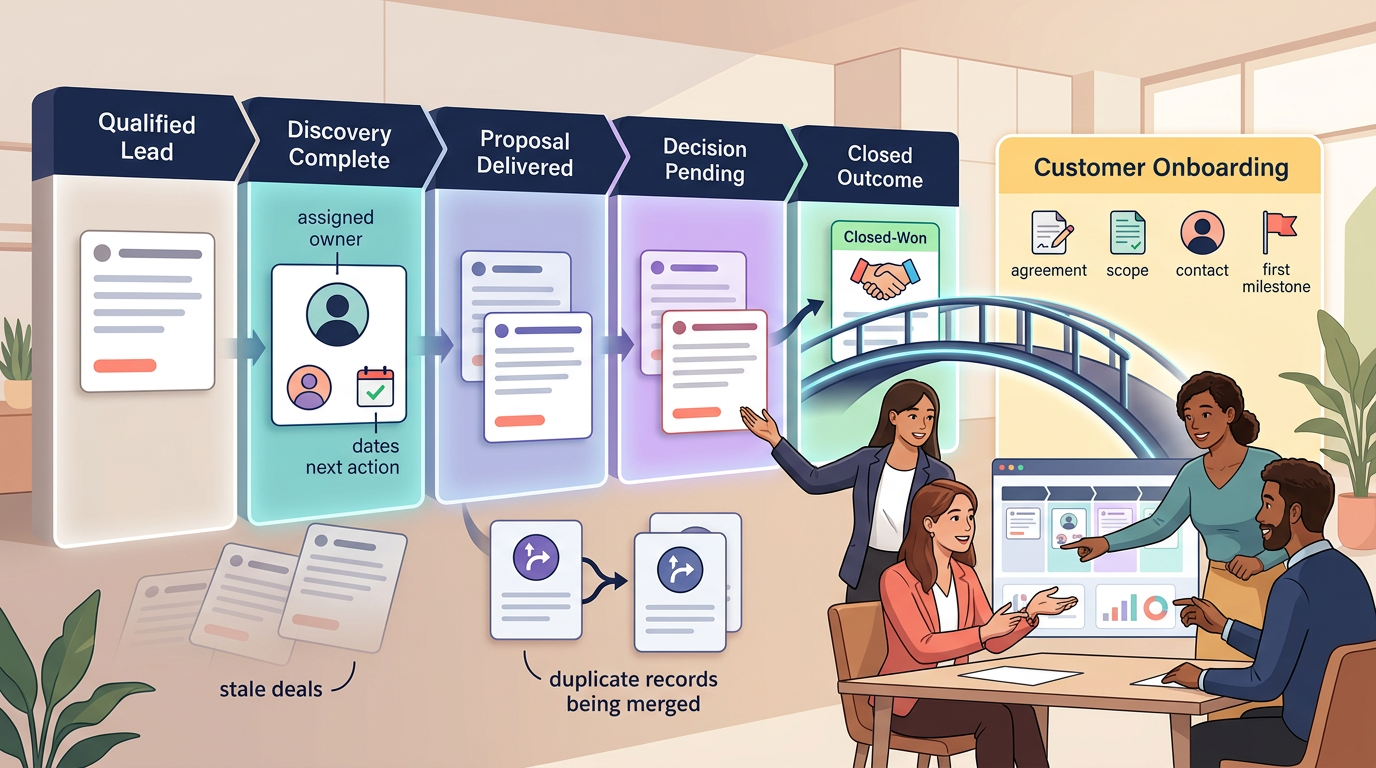
    • Closed Won begins the handoff. The deal is not operationally complete until delivery receives the required context.

    Before configuration: define the Next-Action Contract

    Write these rules before opening CRM settings. The software should enforce the process, not invent it.

    Who enters the active pipeline?

    A newsletter subscriber, downloaded business card, or cold list entry may belong in Contacts or a lead inbox. An active deal should represent a specific potential transaction with a plausible buyer, need, value, and next step.

    This distinction is supported by CRM data models. Pipedrive, for example, separates unqualified leads from deals that move through an active pipeline. Converting a lead transfers the linked person or organization, notes, comments, and activities into the deal.

    What evidence moves a deal?

    Name each stage after an observable buyer commitment. “Proposal sent” is stronger than “Working.” “Decision meeting scheduled” is stronger than “Negotiation.” A stage should make the next expected event obvious.

    What makes a next action valid?

    • One accountable owner
    • A specific action, not “check in”
    • A due date
    • A linked contact or deal
    • A reason the action matters
    • An outcome that will update the record

    When does a deal become stale?

    Set the threshold by stage. A new inquiry may require review after three business days. A proposal with a documented buyer timeline may remain valid longer. The rule should trigger a decision: advance, schedule a meaningful follow-up, move to nurture, or close lost.

    What must cross the post-sale bridge?

    Define the minimum handoff before anyone can mark a deal Closed Won. Typical items include the agreement, scope, pricing, promised exceptions, stakeholders, onboarding contact, start date, billing instructions, risks, and first delivery milestone.

    Download the CRM Next-Action Control Workbook

    Use the workbook to define pipeline evidence, design essential fields, test active deals for ownership and next actions, audit stale records, document the Closed Won handoff, and complete a two-week simplification review.

    • CRM Charter
    • Pipeline Design
    • Field Budget
    • Next-Action Audit
    • Stale-Deal Review
    • Closed-Won Handoff
    • Two-Week Review

    Step 1: Build the smallest useful data model

    Start with three record types:

    • Contacts: people and communication context
    • Companies or accounts: organizations associated with contacts
    • Deals or opportunities: qualified commercial transactions moving toward an outcome

    A small team does not need to recreate the entire business in custom objects. Add another record type only when it represents a durable concept with its own owner, lifecycle, and reporting need.

    Step 2: Use a five-stage evidence pipeline

    A practical baseline is:

    1. Qualified: Fit, need, contact, and plausible transaction confirmed
    2. Discovery Complete: Requirements, decision process, stakeholders, and timing understood
    3. Proposal Delivered: Buyer received a specific scope and commercial offer
    4. Decision Pending: Buyer confirms evaluation or approval is underway with a known next event
    5. Closed Won or Closed Lost: Outcome recorded with reason and handoff or learning

    Keep broad lead capture outside this pipeline. Pipedrive’s Leads Inbox follows this principle by maintaining prequalified leads separately until they are ready to become deals. Pipedrive also advises using fewer, action-oriented stages that mirror the real sales process.

    Do not use internal production tasks as stages. “Write proposal,” “Ask manager,” and “Update pricing” belong in activities or tasks. They do not describe buyer progress.

    Step 3: Establish a field budget

    Every field charges a small tax: someone must understand it, populate it, maintain it, migrate it, and decide whether it is trustworthy. Start with standard fields and no more than five new required fields unless the sales process clearly demands more.

    • Required at qualification: owner, primary contact, company, source, need, and next action
    • Required for forecasting: amount, expected close date, stage, and buyer-confirmed next event
    • Required at Closed Lost: standardized lost reason and concise context
    • Required at Closed Won: agreement, scope summary, onboarding contact, start timing, and delivery risks

    Use dropdowns for values that must support filtering and reporting. Use free text for context that cannot be represented honestly with a controlled list. Delete any field nobody uses to make a decision.

    Step 4: Make the next action visible

    Every active opportunity should show its next action without opening a long note. Examples include:

    • Send revised scope to the operations lead by Thursday
    • Confirm procurement requirements with the buyer on November 14
    • Prepare pricing options before the decision meeting
    • Close lost if no response after the final agreed follow-up

    Do not force the CRM to create endless low-value reminders. One meaningful next action is better than a queue of overdue “check in” tasks.

    Step 5: Configure guardrails, then stop

    Use only the controls required to protect the process:

    • Require key properties before a meaningful stage change when the selected plan supports it.
    • Prevent or flag stage skipping only when the sequence truly matters.
    • Assign new leads through one documented rule.
    • Highlight deals with no recent activity.
    • Notify the owner when a deal lacks a next action.
    • Create the post-sale handoff after Closed Won.

    Plan availability matters. HubSpot supports pipelines broadly, but custom pipelines, conditional stage logic, pipeline restrictions, and approval controls vary by subscription. Pipedrive limits pipeline editing to users with the appropriate deal-administration permissions. Verify the exact plan before turning process rules into configuration requirements.

    Step 6: Import fewer records than expected

    Importing a contact list is not the same as creating a clean CRM. Before migration:

    • Normalize company domains and email addresses.
    • Remove obvious duplicates.
    • Separate active opportunities from general contacts.
    • Assign owners.
    • Map only approved fields.
    • Preserve the original source file outside the CRM.
    • Import a small sample and inspect associations before loading the remainder.

    Bigin by Zoho CRM, for example, supports individual contact creation, imports, website forms, filtered views, and contact timelines. Those features help centralize records, but the team still owns entry criteria and cleanup.

    Step 7: Test the Closed Won bridge

    Create one synthetic deal and move it through the complete lifecycle. At Closed Won, verify that delivery receives:

    • Customer and stakeholder details
    • Signed agreement or approved order
    • Scope, exclusions, and promised exceptions
    • Price and billing terms
    • Onboarding contact
    • Start date and first milestone
    • Risks, dependencies, and unresolved questions
    • Links to relevant notes and files

    Keep sales and delivery records connected but distinct. Bigin’s Team Pipelines illustrate one way a small business can separate customer-facing processes such as sales, service, refunds, and onboarding while retaining them in the same system.

    The two-week subtraction review

    Run the CRM for two weeks before adding more configuration. Then hold a 30-minute subtraction review.

    • Which fields were repeatedly left blank?
    • Which values were entered inconsistently?
    • Which stage caused arguments?
    • Which records lacked owners?
    • Which active deals lacked a dated next action?
    • Which automation created noise?
    • Which report changed a decision?
    • Which records should not have entered the pipeline?

    Remove unused fields, merge ambiguous stages, disable noisy alerts, and retrain the entry rule. A simple CRM becomes useful through subtraction.

    Three CRM setups that stay small

    Solo founder

    Use one pipeline, one owner, four or five stages, and one rule: every active deal has a dated next action within five business days. Keep unqualified contacts outside the pipeline. Avoid sequences, lead scoring, and elaborate dashboards until missed follow-ups become a pattern.

    Three-person sales team

    Use one assignment rule, standardized lost reasons, required amount and close date before proposal, and a weekly review of ownerless or stale opportunities. Keep the pipeline based on buyer evidence so forecasting means the same thing to every rep.

    Service business with account handoffs

    Keep active sales separate from customer delivery. Require the Closed Won handoff fields and create an onboarding record or task in the delivery system. Track renewals as dated activities or a dedicated renewal process rather than leaving every past client in the active sales pipeline.

    Security, privacy, and data-quality checks

    • Use role-based access and least-privilege integrations.
    • Decide which users can export, delete, merge, or bulk-edit records.
    • Do not store passwords, payment-card data, medical details, government identifiers, or unnecessary sensitive notes in general CRM fields.
    • Document the lawful and appropriate basis for collecting, using, and retaining contact data in applicable jurisdictions.
    • Configure offboarding and record reassignment before the first employee departure.
    • Review public forms for excessive data collection and spam risk.
    • Test deletion, correction, export, and retention procedures.
    • Separate facts from subjective or inappropriate personal commentary.

    When a spreadsheet is still enough

    A shared spreadsheet can be sufficient when one or two people manage fewer than roughly 10 active opportunities, follow-up is not being missed, access needs are simple, and there is no requirement for communication history, automation, or complex permissions.

    Move to a CRM when ownership becomes unclear, opportunities fall through, duplicate records multiply, reporting requires manual reconstruction, or customer context is trapped in individual inboxes.

    Choosing the software

    After the process is defined, compare tools by the actual sales motion, team size, integration needs, administration capacity, and three-year operating cost. Our Best CRM Tools for Small Business guide is the natural next step.

    Final recommendation

    Start with one pipeline, five stages, a small field budget, one owner per record, and a dated next action for every active deal. Build the post-sale bridge before adding advanced automation.

    The best CRM setup is not the most complete. It is the one the team can keep accurate while still spending most of the day serving customers and moving real opportunities forward.

    How this guide was prepared

    This guide was prepared from current CRM vendor documentation and a small-team operating method focused on qualification, buyer-evidence stages, next-action ownership, stale-deal control, data quality, handoffs, permissions, and maintenance. It does not claim a controlled implementation study. Product features and plan availability change, so verify critical requirements in the selected CRM before relying on them.

  • Best CRM Tools for Small Businesses

    Best CRM Tools for Small Businesses

    A small business usually starts shopping for CRM software after something has already gone wrong. A warm lead was forgotten. Two people contacted the same prospect. A proposal sat untouched. The founder realized the pipeline total included deals nobody had spoken to in months.

    That is why the best CRM is not the one with the longest feature list. It is the one that fixes the expensive failure in your sales process without creating a second job maintaining the CRM.

    This guide uses a different approach from a standard CRM roundup. First decide whether the business is ready for CRM software at all. Then diagnose the dominant sales friction. Only then should product names enter the conversation.

    Quick answer: Choose by sales-process failure, not by feature count. Streak fits Gmail-centered follow-up, Pipedrive fits visible deal progression, Bigin and Less Annoying CRM fit simpler small-business administration, folk fits relationship-led selling, Close fits call- and email-heavy inside sales, and HubSpot fits teams that genuinely need a broader customer platform. Treat these as process-fit starting points, not universal rankings.

    Editorial note: Product features, plan limits, pricing, integrations, security controls, and data practices change. Verify the current vendor documentation before purchasing or migrating. This article does not claim hands-on testing of every product.

    Gate 1: Is a CRM actually necessary yet?

    Answer these four questions before buying anything:

    • Are follow-ups being missed because the next action is unclear?
    • Do two or more people need to see the same prospect history?
    • Is pipeline status affecting forecasting, staffing, or cash-flow decisions?
    • Is important sales context scattered across email, notes, spreadsheets, and chat?

    If none applies, a controlled spreadsheet or task list may still be enough. If one applies occasionally, fix the process first and watch it for a few weeks. If two or more are recurring problems, a CRM pilot is easier to justify.

    This is intentionally conservative. CRM software should remove a real constraint, not simply make a small business look more sophisticated.

    Gate 2: Find the friction that is costing you deals

    Score each problem from 0 to 4. Zero means it rarely matters. Four means it is repeatedly disrupting sales.

    Follow-up leakage

    Prospects go quiet because nobody knows the next action or due date.

    Ownership ambiguity

    More than one person can touch a lead, but nobody is clearly accountable for moving it forward.

    Pipeline opacity

    Management cannot distinguish active opportunities from stale deals, so the pipeline looks larger and healthier than it really is.

    Relationship-history fragmentation

    Emails, notes, meetings, and commitments live in different places, making it hard for another person to understand the relationship.

    Post-sale handoff failure

    A won deal reaches delivery without the promised scope, key contacts, agreement details, or next steps.

    Your highest score is the primary buying problem. If several categories tie, prioritize the problem that creates the most customer risk or lost revenue. Do not solve a five-point problem by buying software optimized for a fifteen-point problem you do not have.

    Gate 3: Choose the CRM operating model

    Now the shortlist can get smaller. These are operating models, not universal rankings.

    Inbox-native: Streak

    Investigate Streak when the inbox is already the center of selling and a separate CRM application is likely to become an adoption barrier.

    Strong fit signal: your highest friction is follow-up leakage caused by app switching.

    Disqualifier: the team needs an independent shared CRM environment with reporting and governance that should not revolve around Gmail.

    Pipeline-first: Pipedrive

    Investigate Pipedrive when the primary problem is pipeline opacity and the team manages sales as opportunities moving through defined stages.

    Strong fit signal: managers cannot quickly tell which deals are moving and which need attention.

    Disqualifier: your main problem is maintaining long-term relationship context rather than moving active opportunities.

    Simple small-business CRM: Bigin by Zoho CRM

    Investigate Bigin when a small team needs more structure than a spreadsheet but wants to keep the initial CRM footprint deliberately narrow.

    Strong fit signal: the business needs ownership, follow-up, and a pipeline without an enterprise-style implementation project.

    Disqualifier: complex permissions, multiple specialized processes, or deep reporting are already mandatory.

    Low-admin CRM: Less Annoying CRM

    Investigate Less Annoying CRM when adoption burden is itself the risk. Simplicity has value when the alternative is a feature-rich system the team quietly stops maintaining.

    Strong fit signal: the team wants contacts, tasks, and pipeline structure with minimal administration.

    Disqualifier: advanced workflow automation is central to the future process.

    Relationship-first: folk

    Investigate folk when selling is driven by relationships, referrals, partnerships, recruiting, or high-context interactions rather than a rigid high-volume funnel.

    Strong fit signal: relationship-history fragmentation scores higher than pipeline opacity.

    Disqualifier: strict forecasting and high-volume opportunity management dominate the use case.

    Inside-sales execution: Close

    Investigate Close when the sales day involves frequent prospect communication and the CRM needs to support an active inside-sales rhythm.

    Strong fit signal: sellers spend much of the day calling, emailing, and managing follow-up.

    Disqualifier: the business handles a small number of long, collaborative engagements where communication volume is low.

    Broader customer platform: HubSpot

    Investigate HubSpot when CRM is likely to become one part of a broader customer platform rather than remain a standalone sales tracker.

    Strong fit signal: sales needs to coexist with additional customer-facing workflows and the business is willing to govern a larger platform.

    Disqualifier: the problem is merely a small contact list, reminders, and one straightforward pipeline.

    Gate 4: Eliminate tools before you score them

    A CRM should leave the shortlist before scoring if it fails a non-negotiable requirement. Examples include:

    • A required email, calendar, form, or downstream integration is unavailable.
    • The necessary export path is inadequate for your records.
    • Required permission or administrative controls do not fit the business.
    • The team cannot assign one accountable owner to each active opportunity.
    • An essential capability exists only at a plan or price the business will not buy.
    • The system requires more ongoing administration than anyone is willing to own.

    Do not let an attractive weighted score average away a deal breaker.

    Four businesses will reach four different answers

    Solo consultant: Fifteen active relationships, one seller, and most communication happens in Gmail. Follow-up leakage scores highest. Start by testing an inbox-native or deliberately simple CRM. Deep forecasting should carry almost no weight.

    Three-person agency: Two people sell and one person takes over delivery. Post-sale handoff failure scores highest. The winner must preserve commitments and transfer context cleanly. A CRM that looks great before “closed won” but breaks the handoff is a poor fit.

    Five-person outbound team: Reps handle frequent prospect communication and managers need visibility across many open opportunities. Pipeline opacity and ownership ambiguity matter most. Inside-sales and pipeline-first systems deserve more weight.

    Local service business: Leads arrive from forms, phone calls, referrals, and repeat customers. The process is simple but easy to drop. A small-business CRM should beat a broader platform if it makes intake, ownership, follow-up, and handoff easier with less setup.

    The seven-day adoption test

    Do not migrate the database to “try” a CRM. Build a tiny pilot with synthetic records.

    1. Create 20 fictional contacts and 10 fictional opportunities.
    2. Use no more than five pipeline stages and five required custom fields.
    3. Require one owner and one dated next action for every active deal.
    4. Run a normal lead, a stalled deal, a reassignment, a lost deal, and a won deal through the process.
    5. Have each user complete updates without the person who configured the system standing beside them.
    6. Track missed updates, duplicate records, unclear ownership, and cleanup time.
    7. At the end of day seven, ask whether the team trusts the CRM enough to stop maintaining a shadow spreadsheet.

    If the answer to the last question is no, do not import more data yet.

    Use the Small-Business CRM Process-Fit Card

    Record six things before the final decision:

    • CRM readiness: Is software actually justified?
    • Dominant friction: Which of the five problems scored highest?
    • Operating model: Inbox-native, pipeline-first, simple CRM, relationship-first, inside-sales, or broader platform.
    • Hard disqualifiers: What must the CRM do or avoid?
    • Pilot result: What did users fail to update or understand?
    • Decision: Adopt, keep testing, simplify the process, or stay with the current system.

    The companion scorecard turns those six items into a repeatable comparison without pretending there is one best CRM for every small business.

    After you choose the CRM, stop comparing and simplify

    Selection and setup are different jobs. Once the CRM is chosen, do not keep adding features from the comparison phase. Start small, establish clean ownership, and remove anything the team consistently ignores.

    The next step is the practical guide to Simple CRM Setup for Small Teams. It focuses on contacts, pipelines, ownership, stale records, and the post-sale handoff rather than repeating the buying decision.

    How these CRM options were evaluated

    The evaluation starts with the work the CRM must support. The primary factors are follow-up reliability, ownership clarity, pipeline visibility, relationship context, post-sale handoff, setup burden, ongoing administration, integration fit, migration risk, and the team’s ability to keep records current. A product is included only when it represents a meaningfully different operating model.

    • No single overall winner: the verdict changes with the sales motion and operating constraints.
    • No unsupported scoring: missing or unverified product facts should not receive credit.
    • No fake testing: workflow analysis and official documentation are separated from hands-on evidence.
    • Hard disqualifiers matter: security, permissions, data handling, required integrations, exportability, and migration constraints can remove a product before weighted scoring.
    • Adoption is part of fit: a seven-day pilot should test whether users maintain owners, stages, and next actions without repeated reminders.

    Sources and verification

    Recheck material product claims immediately before publication and during freshness reviews. Start with the official product, pricing, security, privacy, integration, and export documentation for Streak, Pipedrive, Bigin by Zoho CRM, Less Annoying CRM, folk, Close, and HubSpot CRM. Vendor pages establish current product facts, but they do not determine the editorial verdict; the process-fit method above does.

    Commercial independence: A product should not rank higher because an affiliate relationship exists. If affiliate links are added, place a clear disclosure before the first affiliate link and retain non-affiliate alternatives.

    Final rule

    Choose the CRM your team can keep truthful. A smaller system with accurate owners, stages, and next actions is more useful than a sophisticated CRM full of stale records and ignored tasks.

  • How to Set Up a Team Wiki in Notion That Stays Useful

    How to Set Up a Team Wiki in Notion That Stays Useful

    A team wiki does not become useful when the last document is imported. It becomes useful when a teammate can find one answer, know who owns it, and tell whether it is still safe to follow.

    That standard changes how to set up a team wiki in Notion. The goal is not to build the deepest page tree or the most impressive dashboard. The goal is to create a small knowledge system that turns uncertain information into trusted guidance, then removes that guidance when it becomes stale.

    This guide uses a six-state Trust Queue: capture, shape, own, verify, use, and retire. It gives every page a path through the wiki rather than treating Notion as a permanent storage bin.

    The finished wiki should answer four questions

    • Where is the answer? A teammate can reach the authoritative page through search or the wiki home page.
    • Who owns it? A named person or role is responsible for accuracy.
    • Can I trust it? The page shows its status, verification state, and review timing.
    • What happens when it changes? The owner can update, supersede, or archive it without leaving competing instructions behind.

    If the workspace cannot answer those questions, adding more pages will make the problem larger.

    Before building: draw the knowledge boundary

    The wiki should contain durable knowledge that people will need again. It should not become the default destination for every task, transcript, draft, attachment, and conversation.

    Put these in the wiki

    • Standard operating procedures
    • Team charters and role guidance
    • Onboarding instructions
    • Product, service, or technical reference material
    • Approved policies and frequently used explanations
    • Decision records that explain what changed and why
    • Project conclusions, retrospectives, and reusable lessons
    • Templates that create consistent future documentation

    Keep these outside the trusted layer

    • Personal scratch notes
    • Unreviewed AI output
    • Raw meeting transcripts without extracted decisions
    • Active sprint tasks and personal to-do lists
    • Temporary project chatter
    • Attachments with no owner, summary, or context
    • Draft policies that could be mistaken for approved guidance

    Notion can manage projects and tasks, but the trusted wiki layer should remain distinguishable from fast-changing execution. Link the systems when needed. Do not make a task board look like permanent policy.

    Build the Trust Queue

    Every important page should move through six states. The states can be represented with a simple Status property, filtered views, and clear templates.

    1. Capture

    A potentially useful procedure, decision, or explanation enters a controlled intake area. At this stage, the page is not authoritative. It needs a descriptive title, source, proposed owner, and reason for inclusion.

    2. Shape

    The page is rewritten into a standard format. A procedure gains prerequisites, ordered steps, expected results, exceptions, and escalation guidance. A decision gains context, alternatives, rationale, consequences, and a supersession link.

    3. Own

    A person or accountable role accepts responsibility. “Operations” is too vague unless that role reliably owns the page. A useful owner can answer questions, approve corrections, and decide when the content should be retired.

    4. Verify

    The owner checks the page against the actual process and marks it safe to use for a defined period. Notion wikis support page owners and verification. Verified pages receive an indicator in mentions and search results, and owners are notified when verification expires. Verification can therefore become a maintenance trigger rather than a decorative badge.

    5. Use

    The verified page appears in the appropriate home-page section, teamspace, onboarding guide, or search result. Teammates can read it without wondering whether another hidden page contains newer instructions.

    6. Retire

    When the content is no longer current, remove it from normal navigation. Mark whether it was archived, replaced, merged, or deleted under the organization’s retention rules. Add a link to the replacement when historical context still matters.

    Download the Notion Wiki Trust Audit Workbook

    Use the companion workbook to plan the wiki, inventory existing pages, assign owners, set review dates, test findability, document permissions, and record archive or replacement decisions.

    • Wiki Charter
    • Page Inventory
    • Trust Queue
    • Findability Test
    • Permissions Review
    • Maintenance Calendar
    • Migration Decisions

    Step 1: Create a standalone wiki page

    Create a standalone page called Team Wiki or [Company] Wiki. The account performing the conversion needs Full access. Open the page menu and choose Turn into wiki.

    Notion currently converts pages, not databases, into wikis. A new wiki provides three useful views: Home, All pages, and Pages I own. Use Home for guided navigation, All pages for management, and Pages I own to give each owner a personal maintenance queue.

    Step 2: Keep the home page deliberately small

    Create five to seven visible doors rather than a map of everything the company knows. A practical starting structure is:

    • Start Here: Wiki purpose, search guidance, contribution rules, and help contact
    • Company and Team: Charters, roles, onboarding, and ways of working
    • How We Work: Approved SOPs, policies, and recurring processes
    • Products or Services: Reference material people repeatedly need
    • Decisions: Important choices, rationale, consequences, and replacement decisions
    • Templates: Approved structures for new content
    • Archive: Retired material kept for context but excluded from normal navigation

    Do not force every department into the structure on day one. Add a section when enough maintained knowledge exists to justify it.

    Step 3: Add the minimum useful properties

    Properties make pages sortable, searchable, and maintainable. Start with a small set:

    • Status: Capture, Shape, Verify, Published, or Retired
    • Owner: Person responsible for accuracy
    • Content type: SOP, policy, reference, decision, onboarding, retrospective, or template
    • Team: Primary group responsible for the page
    • Review frequency: Monthly, quarterly, semiannual, annual, event-driven, or none
    • Next review: Date the owner should recheck the page
    • Authority: Draft, approved guidance, or historical record
    • Replacement page: Link used when content is superseded

    Avoid creating dozens of tags before the team knows how people search. Each additional property creates a maintenance obligation.

    Step 4: Build three templates, not twenty

    Database templates can prefill page structure and properties. Begin with three formats that cover most durable knowledge.

    Procedure template

    • Purpose and expected result
    • When to use the procedure
    • Prerequisites and access
    • Numbered steps
    • Exceptions and failure handling
    • Escalation owner
    • Verification and review timing

    Decision record

    • Decision and date
    • Context and constraints
    • Options considered
    • Rationale
    • Consequences
    • Owner
    • Supersedes or superseded by

    Reference page

    • Short answer
    • Scope and audience
    • Detailed explanation
    • Related systems and pages
    • Source links
    • Owner and review schedule

    Keep templates short enough that people will use them. A template that takes 20 minutes to understand will be bypassed.

    Step 5: Assign permissions before content spreads

    Use teamspaces and groups to grant access by team or role rather than sharing important pages one person at a time. Decide who can read, comment, edit, share, and administer each area.

    • Give broad read access to trusted company guidance.
    • Limit editing of critical policies and procedures to owners or designated maintainers.
    • Use restricted teamspaces or pages for sensitive material.
    • Review guest access separately from employee access.
    • Check whether a default teamspace makes content broadly available.
    • Do not publish internal wiki pages to the web unless public access is intentional and reviewed.

    Permission features vary by plan and workspace configuration. Test access with representative user and guest accounts before migrating sensitive information.

    Step 6: Migrate through a quarantine lane

    Do not drag every old document into the public wiki and promise to clean it later. Create a restricted Migration Review area. For each source document, choose one action:

    • Publish: Current, useful, owned, and reformatted
    • Revise: Valuable but incomplete or outdated
    • Merge: Duplicates another page and should become one authoritative source
    • Archive: Historically useful but no longer current
    • Reject: Redundant, unsupported, or inappropriate for the wiki

    Import features can move information into Notion, but import is not governance. Preserve the original repository until page owners verify that required content, formatting, links, attachments, and permissions survived the migration.

    Step 7: Test findability with five questions

    Ask a person who did not build the wiki to locate five real answers:

    1. How does a new employee request access to a core system?
    2. What is the approved process for a recurring team task?
    3. Why was one important operational decision made?
    4. Who owns an unclear or outdated page?
    5. Which page replaced an older procedure?

    Run each question through the home page and Notion search. Record the time, search terms, wrong pages opened, and whether the final answer looked authoritative. A two-minute findability target is a useful starting threshold for core knowledge.

    Step 8: Make trust decay visible

    Different knowledge ages at different speeds. Access instructions may need a quarterly review. A brand-history page may remain accurate for years. A policy may require an event-driven review after a legal or operational change.

    Create views for:

    • Verification expiring soon
    • Pages with no owner
    • Overdue reviews
    • Drafts older than 30 days
    • Pages marked for merge
    • Retired content still linked from active pages

    The maintenance system should create a small, visible queue. It should not require a separate full-time wiki administrator for a small team.

    The 10-page launch

    A small team does not need a complete company encyclopedia. Launch with ten pages that remove recurring uncertainty:

    1. Wiki Start Here
    2. Team charter and contacts
    3. New employee first-week guide
    4. Access-request procedure
    5. Primary customer or service workflow
    6. Quality or review checklist
    7. Incident or escalation procedure
    8. Decision log
    9. Procedure template
    10. Archive and contribution rules

    Watch what people search for and ask repeatedly. Expand from demonstrated demand rather than imagined future departments.

    Failure patterns to catch early

    • Duplicate truth: Two pages give different answers without identifying which is current.
    • Owner theater: A departed employee or inactive group remains assigned.
    • Verification theater: Pages are marked current indefinitely even though the underlying process changes.
    • Meeting-note burial: Important decisions remain inside chronological notes instead of the decision log.
    • Template tax: Required fields create more work than the page’s value justifies.
    • Permission inheritance surprises: Content becomes visible or editable because of its parent page or teamspace.
    • Archive as landfill: Retired pages remain searchable without clear historical labels or replacement links.
    • AI without review: Generated summaries become trusted documentation without an accountable human verifying them.

    When Notion is no longer the right wiki

    Reconsider the platform when the team needs controls, publishing workflows, structured technical documentation, external portals, or compliance capabilities that the current Notion plan and configuration cannot support. Also reconsider when workspace flexibility repeatedly defeats governance.

    Compare alternatives before adding another layer of workarounds. Our Notion alternatives guide covers other ways to structure team knowledge and collaboration.

    Final recommendation

    Start with one wiki, five to seven doors, three templates, named owners, and a visible review queue. Launch ten useful pages before migrating hundreds of uncertain ones.

    The best team wiki is not the largest. It is the one people trust enough to follow and owners can maintain without heroic cleanup.

    How this guide was prepared

    This guide was prepared from current Notion documentation and a knowledge-governance method focused on ownership, verification, findability, permissions, migration, and retirement. It does not claim a controlled implementation study. Notion features and plan availability can change, so verify permissions, wiki controls, import behavior, and administrative features in the workspace before relying on them.

  • Best Notion Alternatives: Choose by Workflow, Not Features

    Best Notion Alternatives: Choose by Workflow, Not Features

    Notion can be excellent at holding many kinds of work in one place. That is also why replacing it can go badly. People often shop for a “Notion alternative” as if they were replacing one feature, then discover they were actually relying on five: notes, documents, databases, project tracking, and a team wiki.

    Disclosure: Streamlined Tools may add affiliate links to software recommendations. If a link is an affiliate link, it will be identified and may earn the site a commission at no additional cost to you. Compensation does not change the workflow-fit criteria used in this guide.

    Quick answer: the best Notion alternatives are not interchangeable. Choose a focused notes app for personal capture, a documentation platform for a team wiki, a document-first workspace for collaborative writing, a database-oriented tool for structured records, or a project tracker for accountable execution. Start with the job you need to improve, then test migration quality and daily friction before switching.

    The safest way to switch is not to find another app that looks like Notion. It is to identify the job Notion is doing badly for you, then replace that job with a tool designed around it.

    Start with the reason you want to leave

    A useful replacement decision starts with a sentence, not a shortlist:

    We want to replace Notion because __________ makes __________ harder than it should be.

    For example:

    • “Database upkeep makes weekly planning harder than it should be.”
    • “Nested pages make approved procedures hard for the team to find.”
    • “Tasks disappear inside documents, so owners miss deadlines.”
    • “The blank canvas encourages us to redesign the system instead of using it.”
    • “Our notes need to remain useful when the internet connection is unreliable.”

    That sentence is your replacement criterion. Without it, a polished demo can pull you toward a different version of the same problem.

    The Notion Replacement Fit Score

    Before you compare products, score the replacement problem itself. Give each dimension 0, 1, or 2 points: 0 means it barely matters, 1 means it matters sometimes, and 2 means it is central to the way you work.

    • Capture: How important are fast personal notes and retrieval?
    • Documentation: How important are durable team pages, navigation, page ownership, and findability?
    • Structured data: How much do you depend on fields, filtered views, linked records, forms, or database-style organization?
    • Execution: How much do owners, deadlines, recurring work, dependencies, and status tracking matter?
    • Collaboration: How much do drafting, comments, review, permissions, and shared editing matter?
    • Portability: How important is a clean export, useful metadata, attachments, and a realistic rollback path?

    Do not total the six numbers into a fake universal ranking. Look for the dimensions scoring 2. Those are your non-negotiables. A candidate that is excellent everywhere else but weak on one of those dimensions is usually a poor replacement.

    Download the Notion Replacement Fit Planner

    Use the free workbook to diagnose why you are considering a switch, compare up to five candidates, flag hard-stop risks, and plan a reversible migration.

    The workbook is designed for public use. Do not enter personal, confidential, customer, employee, or restricted information.

    The Notion replacement map

    Instead of ranking every alternative from best to worst, match the tool category to the work you need to improve.

    If Notion is mainly your personal notebook

    Look first at note-focused tools such as Obsidian, OneNote, or a simple Markdown editor. The important questions are how quickly you can capture a thought, how reliably search finds it later, and whether your preferred desktop, mobile, sync, and offline workflow is supported.

    Good fit: research notes, meeting notes, idea capture, and personal reference material.

    Bad fit: a team needs formal approvals, tightly managed permissions, or a shared operational database.

    If Notion is mainly your team wiki

    Consider a documentation-first system such as Confluence or another dedicated knowledge-base platform. Favor predictable navigation, page ownership, search, permissions, templates, and a practical way to identify stale pages. If you keep Notion as the documentation layer, use How to Set Up a Team Wiki in Notion to simplify the structure.

    Good fit: onboarding guides, policies, standard operating procedures, technical documentation, and internal reference pages.

    Bad fit: the real need is task execution or a relational operating database.

    If Notion is mainly a collaborative writing space

    Choose a document-first workspace when drafting, commenting, revision, and review matter more than databases. Google Docs, Microsoft Word in Microsoft 365, and Coda represent different approaches, so test the actual review cycle rather than comparing feature lists.

    Good fit: briefs, proposals, policies, reports, and content drafts that move through reviewers.

    Bad fit: the document must also serve as a durable task engine, inventory system, or CRM.

    If Notion is mainly a flexible database

    Evaluate database-oriented tools such as Airtable when records, field types, filtered views, linked data, forms, and automations are central. Do not migrate to a simpler notes app and expect it to preserve a structured operating system.

    Good fit: content inventories, lightweight CRMs, asset trackers, request queues, and structured catalogs.

    Bad fit: most entries are long documents and the database exists mainly because a template told you to create one.

    If Notion is mainly your project tracker

    Look at task-first platforms such as Asana, ClickUp, Trello, or Microsoft Planner. The deciding factor is not which board looks best. It is whether owners, deadlines, dependencies, recurring work, notifications, and status rules remain clear when several people are using the system.

    Good fit: campaigns, client delivery, recurring operations, launches, and projects with accountable owners.

    Bad fit: you mostly need a quiet place to think and write.

    Pick a candidate by the job, not the brand

    • Personal capture is the non-negotiable: test note-focused tools first.
    • Team knowledge is the non-negotiable: test documentation-first platforms first.
    • Structured records are the non-negotiable: test database-oriented platforms first.
    • Deadlines and ownership are the non-negotiable: test task-first project systems first.
    • Two or more jobs are equally critical: compare a deliberate two-tool split against keeping a simplified Notion workspace.

    This is the key filter: do not ask which alternative has the most features. Ask which candidate protects the parts of the workflow you cannot afford to make worse.

    A five-part test before you migrate

    Do not start with your entire workspace. Choose one representative slice of real work and run it through this test.

    1. Core job: Can the candidate complete the main job with fewer steps or less maintenance?
    2. Information shape: Does it handle your real mix of pages, files, fields, relationships, comments, and tasks?
    3. Team behavior: Can a new user find the right place without a private tour from the person who built it?
    4. Exit path: Can you export the information in useful formats, including the metadata that matters to you?
    5. Ongoing ownership: Who will manage permissions, templates, integrations, cleanup, and broken workflows six months from now?

    A candidate that wins the demo but fails the ownership question is not a simpler system. It is delayed maintenance.

    Three replacement patterns that work

    Pattern 1: One simpler tool

    Use this when Notion has one dominant job. A personal knowledge base might move to a note-focused app. A company handbook might move to a dedicated wiki. Keeping the replacement narrow makes adoption easier and reduces administration.

    Pattern 2: A deliberate two-tool split

    Use this when documents and execution keep colliding. Put durable knowledge in a documentation system and active work in a project tracker. The split works only if you define which tool owns the final answer and link between them consistently.

    Pattern 3: Keep Notion, remove the machinery

    Sometimes the software is not the problem. The workspace is. Before migrating, try deleting unused properties, archiving abandoned dashboards, reducing templates, naming one owner, and separating reference pages from active tasks. A smaller Notion setup may solve the original frustration without a migration.

    What usually goes wrong

    • Buying by resemblance: The new tool looks familiar but does not fix the reason you wanted to leave.
    • Copying the old clutter: Every unused page and field is migrated “just in case,” preserving the same mess in a new interface.
    • Ignoring metadata: Pages arrive, but owners, dates, relations, attachments, comments, or permissions do not survive as expected.
    • Moving everything at once: The team discovers workflow gaps only after the old system has been abandoned.
    • Creating two sources of truth: People update tasks in one tool and project status in another, then neither can be trusted.
    • Treating setup as adoption: A beautifully configured workspace is launched without rules for where work belongs or who maintains it.

    A low-risk migration plan

    1. Inventory the current workspace. Separate active material, reference material, records that must be retained, and content that can be archived.
    2. Pick one representative workflow. Include an ordinary case and an awkward case, such as a page with attachments, linked records, guests, or comments.
    3. Run a small export and import. Inspect formatting, links, files, dates, properties, relations, and permissions rather than assuming they transferred.
    4. Define ownership. State which system owns documents, tasks, structured records, and final decisions.
    5. Use a short parallel run. Keep the old workspace read-only or tightly controlled while the pilot group completes real work in the replacement.
    6. Document rollback conditions. Decide in advance what would make you pause, change the design, or return to the old workflow.
    7. Move in batches. Migrate active work first, then valuable reference material. Archive the rest instead of importing it automatically.

    How this guide was evaluated

    This guide is a workflow-fit analysis, not a hands-on benchmark. We evaluate replacement paths by the job a reader needs to improve, the complexity they are trying to remove, migration risk, ongoing maintenance, collaboration needs, and how easily information can be retrieved later. Product capabilities can change, so confirm any feature, plan, export, integration, privacy, or permission requirement with the provider before making a final migration decision.

    No company is ranked simply for having more features. A useful replacement should solve the primary workflow without creating a larger administration or migration problem.

    A low-risk way to make the decision

    1. Write down the one job that currently makes you want to leave Notion.
    2. Shortlist only tools built around that job rather than trying to replace every Notion feature.
    3. Export a small but representative set of pages, attachments, links, dates, and structured properties.
    4. Rebuild one real workflow in the candidate tool and note what requires manual cleanup.
    5. Confirm permissions, sharing, export, and ownership requirements before moving the whole workspace.
    6. Keep the old workspace available until the replacement passes a retrieval and rollback check.

    Editorial note: This article is designed to help readers narrow a software decision. It does not represent vendor endorsement, and it does not imply first-hand testing where that has not occurred.

    Frequently asked questions

    What is the best overall alternative to Notion?

    There is no single best replacement for every Notion workspace. For flexible documents and team knowledge, start with a document or wiki platform. For personal notes, choose a focused notes app. For structured records, test a database-oriented tool. For deadlines and ownership, use a dedicated project tracker. The best choice is the one that improves your primary job without creating a worse migration or maintenance problem.

    What is a simpler alternative to Notion?

    If your workspace has become difficult to maintain, a focused notes or document app is usually simpler than another all-in-one workspace. Simplicity should be measured by the number of decisions required to capture, find, update, and share information, not by the length of the feature list.

    Should a team replace Notion with one tool or several?

    Use one replacement when one workflow clearly dominates and the team benefits from a single home. Use a deliberate two-tool split when documents and accountable tasks need different owners. Avoid adding tools without defining which system is authoritative for each kind of work.

    How should you test a Notion alternative before migrating?

    Test one representative workflow, one awkward case, and one export path. Confirm that formatting, links, attachments, dates, structured properties, permissions, and ownership survive. Then run a short pilot with real users before moving the full workspace.

    What should you do if the real problem is workspace clutter?

    Do not migrate clutter automatically. First archive stale pages, assign owners to active areas, reduce unnecessary databases, and establish one clear location for final decisions. A simplified Notion workspace may solve the problem with less disruption than a full replacement.

    For a broader comparison of collaboration-focused options, see Best Note-Taking Apps for Teams.

    The practical verdict

    The best Notion alternative is the one that removes the specific friction your team can name without damaging a workflow you depend on. If one job clearly dominates, move to a tool built around that job. If several jobs are genuinely critical, compare a deliberate two-tool split with a simplified Notion workspace before committing to another all-in-one system.

    Rule of thumb: replace Notion only when the new setup makes your most important job meaningfully clearer and gives you a believable exit path if the migration disappoints.

    If Notion is mostly being used to manage assignments and deadlines, compare the options in Best Project Management Tools.

  • Best Meeting Scheduling Tools: Choose by Booking Friction

    Best Meeting Scheduling Tools: Choose by Booking Friction

    A booking link can remove five emails and still make the workday worse. The meeting lands in the wrong part of the day, the host loses focus time, the guest receives too many reminders, and a reschedule leaves duplicate events behind.

    That is why the best meeting scheduling tool is not simply the one that books fastest. It is the one that creates the least friction before, during, and after the booking.

    This guide compares Calendly, Cal.com, SavvyCal, Doodle, Microsoft Bookings, and Google Calendar appointment schedules through a booking-friction test. The goal is not to crown one universal winner. It is to identify which tool fits the way a person or team actually schedules.

    The short assignment

    • Choose Calendly when a team needs mature external booking, round-robin distribution, qualification, and CRM-aware routing.
    • Choose Cal.com when customization, routing logic, developer control, APIs, or a self-hosting path matter more than turnkey simplicity.
    • Choose SavvyCal when the booking experience, calendar overlay, preferred times, and protection of focus time are the priorities.
    • Choose Doodle when coordinating a group across companies or collecting availability is more important than sending a standard one-to-one booking link.
    • Choose Microsoft Bookings when the organization already works in Microsoft 365 and needs personal or shared booking pages, staff management, Outlook calendars, and Teams meetings.
    • Choose Google Calendar appointment schedules when a Google-centered user or team needs booking pages and calendar guardrails without adding a separate scheduling platform.

    Every recommendation depends on the plan, calendar environment, routing complexity, security requirements, and the amount of administration the team can support. Product capabilities and pricing change, so verify critical requirements before purchase.

    The booking-friction test

    Run one realistic meeting through six moments. A scheduler that performs well only on the public booking page is not enough.

    Moment 1: The invitation

    Can the guest understand the meeting’s purpose, duration, location, preparation requirements, and available hosts without opening multiple pages? The booking page should offer enough context to make a decision without turning into a sales funnel.

    Moment 2: The availability check

    Connect every calendar that can make the host unavailable. Test time-zone detection, minimum notice, booking windows, buffers, daily limits, out-of-office events, and whether tentative or all-day events block time correctly.

    Moment 3: The assignment

    For team scheduling, verify who receives the meeting and why. A round-robin system may maximize the number of available slots or optimize for equal distribution. Those are different operating choices. Routing may also need to consider geography, language, expertise, account ownership, or form responses.

    Moment 4: The confirmation

    Inspect the event created on every calendar. Confirm the host, guest, time zone, meeting location, video link, intake answers, and cancellation or rescheduling options. The booking is not successful if someone must repair the invitation manually.

    Moment 5: The change

    Reschedule the meeting, cancel it, change the host, and move it across a daylight-saving transition if the team works internationally. The original slot should reopen correctly, obsolete events should disappear, and the new invitation should remain understandable.

    Moment 6: The handoff

    Check what happens after booking. Form answers, lead ownership, project context, and follow-up tasks should reach the approved system without duplicate records or missing fields. If the workflow depends on app-to-app automation, evaluate that layer separately in our Zapier vs. Make comparison.

    Download the Scheduling Friction Test Workbook

    Use the companion workbook to define the meeting, run the same six-moment test across candidates, evaluate routing and calendar hygiene, estimate operating cost, and document the final decision.

    • Meeting Definition
    • Six-Moment Friction Test
    • Calendar Hygiene Review
    • Routing and Handoff Review
    • Weighted Scorecard
    • Cost Model and Decision Record

    Calendly: the external-booking operator

    Calendly has the strongest case when scheduling is part of a larger customer or sales process. Beyond personal links, its team features support collective events, round robin, qualification forms, CRM-aware routing, and administrative controls.

    Its round-robin logic illustrates an important buying decision. “Maximize for Availability” exposes times when any eligible host is free, while “Optimize for Equal Distribution” can hide availability to keep assigned meeting counts closer together. A sales team chasing conversion may prefer the first. A support or onboarding team protecting workload balance may prefer the second.

    • Best fit: inbound sales, customer success, recruiting, and client-facing teams that need qualification and routing.
    • Watch for: plan-specific access to routing and team features, event-type sprawl, excessive reminders, and CRM fields that fail to map cleanly.
    • Test: route a known account to its owner, distribute an unknown lead, reschedule both, and verify the CRM record.

    Review the current Calendly Routing documentation and round-robin behavior before selecting a plan.

    Cal.com: the configurable scheduling infrastructure

    Cal.com belongs on the shortlist when a standard booking page is not enough. Its appeal is configurability: teams can build routing around attributes, weights, virtual queues, fallback logic, Salesforce data, APIs, and custom experiences.

    That flexibility is valuable when the scheduled host depends on language, country, department, seniority, expertise, or another business attribute. It also introduces design and maintenance work. A configurable system needs an owner who can document its routing rules and test what happens when no host matches.

    • Best fit: product teams, developers, agencies, marketplaces, and organizations with complex routing or customization requirements.
    • Watch for: implementation effort, fallback behavior, long-term rule maintenance, and the operational burden of deep customization.
    • Test: create a route based on two host attributes, remove the ideal host, and confirm that fallback behavior remains safe and understandable.

    Use the official Cal.com Routing overview to verify current capabilities.

    SavvyCal: the calendar-respectful booking experience

    SavvyCal is a strong choice when the person booking should be able to compare availability without mentally switching between calendars. Its calendar overlay lets invitees place their own calendar over the host’s available times. Preferred times, buffers, limits, time blocks, and meeting clustering are designed to protect the host’s day as well as simplify booking.

    SavvyCal also supports collective scheduling, round robin, outside colleagues, paid bookings, reminders, and website embeds. The important difference is emphasis: the experience is built around making availability understandable and steering bookings toward better parts of the calendar.

    • Best fit: consultants, agencies, founders, and small teams that value a polished guest experience and strong calendar guardrails.
    • Watch for: whether the required sales-routing, SMS, CRM, or enterprise administration capability exists on the selected plan.
    • Test: ask an external participant to overlay a calendar, select a preferred time, and reschedule without guidance.

    Review the official SavvyCal feature overview before purchasing.

    Doodle: the group-coordination specialist

    Doodle is most distinct when several people, possibly from different organizations and calendar systems, need to identify a workable time. Group Poll, Sign-up Sheet, Booking Page, and one-to-one scheduling address different coordination problems rather than forcing every meeting through the same link.

    Current Doodle materials also emphasize connected calendars, buffers, meeting limits, focus protection, rescheduling, and cross-company coordination. That makes it worth considering beyond the familiar group poll, but group availability remains the clearest reason to choose it.

    • Best fit: committees, distributed teams, cross-company groups, events, classes, and meetings where participants need to vote on options.
    • Watch for: participant response delays, too many proposed times, and using a poll when a normal booking page would be faster.
    • Test: schedule a five-person meeting across two organizations and three time zones, then change the selected time.

    Check the official Doodle product overview for current scheduling modes and calendar controls.

    Microsoft Bookings: the Microsoft 365 scheduler

    Microsoft Bookings is the natural first pilot for organizations already operating in Outlook, Exchange Online, Teams, and Microsoft 365. Personal Bookings supports individual availability, while Shared Bookings supports staff, services, business hours, booking pages, and team appointment management.

    Bookings can create Teams meeting links, send notifications, allow customer rescheduling or cancellation, and keep appointment data within the Microsoft 365 environment. Its value is often economic and operational: the organization may already license it, and administrators may prefer to govern another workflow inside the existing tenant.

    • Best fit: Microsoft 365 organizations, service desks, office hours, education, consultations, and shared departmental booking pages.
    • Watch for: licensing, tenant configuration, staff permissions, shared-mailbox behavior, and whether advanced routing or branding requirements exceed the product’s scope.
    • Test: create a shared service with two staff members, a Teams meeting, custom intake fields, reminders, and self-service rescheduling.

    Confirm plan eligibility and features in the official Microsoft Bookings service description.

    Google Calendar appointment schedules: the Google-native option

    Google Calendar appointment schedules are the simplest first test for people who already manage availability in Google Calendar. A booking page can use appointment duration, recurring availability, scheduling windows, lead time, date-specific availability, buffers, maximum bookings per day, and calendar conflict checks.

    Some advanced functions depend on the account or subscription. Google lists premium capabilities such as multiple appointment schedules, automatic reminders, checking multiple calendars, payments, email verification, secondary calendars, and up to 20 co-hosts for eligible subscriptions.

    • Best fit: Google-centered individuals and teams that want scheduling close to the calendar they already use.
    • Watch for: subscription eligibility, limits on co-hosting or multiple calendars, and whether the workflow eventually needs sophisticated routing or CRM handoffs.
    • Test: create a booking page with a buffer, daily booking cap, minimum lead time, secondary availability calendar, reminder, and co-host if applicable.

    Use the official Google Calendar appointment-schedule setup guide and premium-feature comparison to confirm account eligibility.

    Calendar hygiene matters more than feature count

    A scheduler can make a disorganized meeting culture more efficient without making it healthier. Before adding automation, establish rules the tool must enforce.

    • Protect focus blocks: define hours when external booking is unavailable.
    • Cap meeting load: set a realistic daily or weekly maximum by role.
    • Add recovery time: use buffers that account for notes, travel, preparation, and overruns.
    • Limit meeting types: maintain a small approved set with clear names, durations, owners, and purposes.
    • Control booking horizons: prevent last-minute surprises and bookings so far in advance that priorities are likely to change.
    • Assign ownership: name the person responsible for templates, reminders, routing, integrations, permissions, and quarterly cleanup.

    When project decisions and follow-up tasks need a durable home, connect the meeting process to a suitable system rather than leaving action items trapped in calendar descriptions. Our project management tools guide covers that adjacent decision.

    Security and privacy checks

    A public booking page collects more than a time. It may collect names, email addresses, phone numbers, company information, intake answers, payment data, calendar metadata, and meeting context. Review the exact plan and configuration.

    • Which calendar details can the scheduler read, and what does it store?
    • Can administrators restrict public pages, integrations, custom questions, and external sharing?
    • Are single sign-on, automated provisioning, role controls, audit logs, retention settings, and data residency available where required?
    • Can intake questions accidentally solicit sensitive information?
    • What happens to booking data when an employee leaves?
    • How are payment processing, consent, cancellation policies, and records retention handled?

    Do not use a booking form to collect health, financial, identity, or other sensitive information unless the complete workflow has been approved for that data.

    The final decision

    Choose Calendly for mature external booking and sales routing. Choose Cal.com for deeply configurable scheduling infrastructure. Choose SavvyCal for a considerate booking experience and calendar protection. Choose Doodle for group coordination across boundaries. Choose Microsoft Bookings for Microsoft 365-native appointments. Choose Google Calendar appointment schedules for a focused Google-native booking layer.

    Then run the booking-friction test. The winning tool should create the right meeting, with the right person, at a sustainable time, with a clean invitation, a reliable change path, and an accurate handoff. If it saves an email thread but creates a weekly cleanup ritual, it has not solved the scheduling problem.

    How this guide was prepared

    This editorial guide was prepared from current vendor documentation and a workflow-fit method covering invitation clarity, calendar protection, assignment logic, confirmation quality, change handling, handoffs, security, administration, and operating cost. It does not claim a controlled head-to-head test or long-term production use of every tool. Features, plans, prices, and integrations change. Verify critical requirements and run the same real-world booking test before purchasing.

  • Best AI Assistants for Work: Choose by Workday Fit

    Best AI Assistants for Work: Choose by Workday Fit

    The most expensive AI assistant is not necessarily the one with the highest subscription price. It is the one that produces a polished answer, then leaves you to rebuild the work inside your email, documents, spreadsheets, project system, or research notes.

    That is why “Which AI assistant is best?” is the wrong first question. A better question is: Where does the work begin, what must the assistant handle, and where does the finished work need to land?

    For many teams, the shortlist includes ChatGPT, Claude, Gemini, Microsoft Copilot, and Perplexity. Each can draft, summarize, analyze, and research. The important differences appear when the assistant has to work with company context, produce an editable deliverable, cite sources, respect administrative controls, or hand work to the next system.

    The quick assignment

    • Choose ChatGPT when you need a flexible generalist for writing, analysis, coding, file work, and multistep problem solving across varied tasks.
    • Choose Claude when long documents, careful drafting, sustained reasoning, project context, or coding workflows dominate the job.
    • Choose Gemini when work already lives in Gmail, Drive, Docs, Sheets, Slides, Meet, Chat, and Calendar.
    • Choose Microsoft Copilot when the useful context is inside Microsoft 365 and the expected output is an editable Word document, Excel workbook, PowerPoint presentation, Outlook message, or Teams-based work product.
    • Choose Perplexity when source-backed external research is the center of the task and citations need to remain visible throughout the answer.

    That assignment is deliberately conditional. Product capabilities, plans, connectors, and usage limits change quickly. The final choice should come from a controlled test using your own work, security requirements, and approved data.

    The workday relay: five handoffs an assistant must survive

    An AI assistant becomes valuable when it can carry work through a sequence without losing the facts, format, ownership, or next action. Test the following relay rather than asking each product an isolated trivia question.

    Handoff 1: Find the source of truth

    Give the assistant a question that requires both current external information and one approved internal source. Record whether the assistant distinguishes public evidence from company material, provides traceable citations, and tells you when evidence is missing.

    Handoff 2: Turn evidence into judgment

    Ask for a recommendation with explicit constraints, such as budget, deadline, policy, audience, and risk tolerance. A useful assistant should show why the recommendation fits the constraints instead of hiding behind a generic list of options.

    Handoff 3: Produce the real deliverable

    Do not stop at a chat response. Require the actual format your team uses: an editable document, workbook, presentation, email draft, project brief, code change, or sourced research memo. Check formatting, formulas, citations, links, and whether another person can continue the work.

    Handoff 4: Move the work forward

    Test the next action. Can the assistant place the result in the approved workflow, prepare the email, update the task, or connect through an authorized automation? If app-to-app orchestration is central, compare the automation layer separately in our Zapier vs. Make guide. An assistant should not receive broad permissions merely to save a few clicks.

    Handoff 5: Leave an audit trail

    Review what remains after the task is complete. Can a colleague identify the sources, assumptions, edits, approvals, and unresolved uncertainties? For consequential work, a confident paragraph without provenance is not a finished deliverable.

    Download the AI Assistant Workday Relay Workbook

    Use the companion workbook to define one recurring job, run the same five-handoff test across ChatGPT, Claude, Gemini, Microsoft Copilot, and Perplexity, review security requirements, estimate first-year operating cost, and document the final decision.

    • Job Definition
    • Five-Handoff Workday Relay
    • Weighted Scorecard
    • Security and Governance Review
    • Cost and Adoption Model
    • Decision Record

    Excel workbook (.xlsx). Use approved, non-sensitive pilot data. Product capabilities, plans, and controls can change, so verify current vendor documentation before purchasing.

    ChatGPT: the flexible generalist

    ChatGPT has the strongest case when the work changes shape throughout the day. A user might begin with research, upload files, analyze data, draft a brief, revise code, and build an artifact without treating each step as a separate product search.

    OpenAI continues to expand business workspaces, administrative settings, work-oriented experiences, coding capabilities, and connections to other tools. That breadth makes ChatGPT a practical default for mixed individual workflows and small teams that do not live entirely inside one productivity suite.

    • Best fit: varied knowledge work, content development, analysis, coding, file transformation, and tasks that shift between formats.
    • Watch for: plan-specific limits, connector permissions, workspace configuration, and the temptation to treat a fluent answer as verified evidence.
    • Pilot task: turn a research packet and spreadsheet into a sourced recommendation, editable deliverable, and concise executive summary.

    Review the current ChatGPT Business release notes before purchasing because models, tools, and included usage can change frequently.

    Claude: the deep-work specialist

    Claude is compelling when the task depends on maintaining coherence across long material. That can include reviewing policies, working through research, restructuring a difficult draft, analyzing a codebase, or keeping a multi-step project grounded in a large body of context.

    Anthropic’s Team offering includes Projects and knowledge features, workplace connectors, centralized administration, and a 200,000-token context window. Claude Code is also included with Team seats, which broadens the product beyond writing into technical and automation work.

    • Best fit: long documents, careful drafting, policy analysis, complex revision, sustained reasoning, and code-oriented workflows.
    • Watch for: usage limits, connector scope, whether source attribution meets the task, and whether the final result must be created directly inside another productivity suite.
    • Pilot task: compare several long internal documents, identify contradictions, and produce a revision brief with passages that reviewers can verify.

    Check the current Claude Team plan documentation for supported locations, seat types, connectors, administrative controls, and current limits.

    Gemini: the Google Workspace native

    Gemini has the clearest advantage when the work already moves through Google Workspace. The useful outcome is not merely a response from a chatbot. It is the ability to work with context from Gmail, Drive, Docs, Sheets, Slides, Chat, Meet, and Calendar while keeping the result close to the files and conversations people already use.

    Google continues to place Gemini directly inside Workspace applications, including document drafting, presentation creation, form-response analysis, and meeting-related workflows. That proximity can reduce copying and rebuilding, especially for organizations already standardized on Google Workspace.

    • Best fit: teams whose email, files, meetings, documents, spreadsheets, and presentations are centered on Google Workspace.
    • Watch for: edition-specific availability, staged rollouts, administrator controls, source quality, and whether the task depends on systems outside Google’s environment.
    • Pilot task: use approved Drive material and Gmail context to prepare a briefing, update a document, and create an editable presentation without manually rebuilding the source material.

    Use the official Google Workspace Updates feed to verify current rollouts before treating a feature as available to every user.

    Microsoft Copilot: the Microsoft 365 operator

    Microsoft Copilot makes the strongest case when the work is already distributed across Outlook, Teams, SharePoint, OneDrive, Word, Excel, and PowerPoint. Its value comes from working near Microsoft 365 content and producing editable Office deliverables, not from winning a generic chatbot contest.

    Microsoft’s current direction brings chat, delegated work, code, agents, and Office creation into a broader Copilot experience. Release notes also show continuing changes inside Word, Excel, PowerPoint, OneDrive, SharePoint, Teams, and administrative reporting. Availability can vary by platform, channel, tenant settings, and rollout stage.

    • Best fit: Microsoft 365 organizations that want grounded assistance across communications, meetings, files, and editable Office artifacts.
    • Watch for: licensing, permissions inherited from Microsoft 365, information oversharing that already exists in the tenant, gradual feature deployment, and the difference between chat and action capabilities.
    • Pilot task: prepare a meeting briefing from approved files and communications, then create an editable Word document, Excel analysis, or PowerPoint presentation with traceable sources.

    Consult the current Microsoft 365 Copilot release notes to confirm platform and rollout status.

    Perplexity: the research desk

    Perplexity is strongest when the first deliverable is a sourced understanding of the outside world. Its research experience emphasizes visible citations, follow-up questions, and connections between external information and approved company knowledge.

    Perplexity Enterprise describes support for external research, internal knowledge, connectors, complex projects, administrative controls, audit logs, and enterprise privacy protections. Its product is expanding into broader agentic work, but research provenance remains the clearest reason to place it on the shortlist.

    • Best fit: market scans, competitor research, source discovery, briefing preparation, and questions where readers must inspect the evidence.
    • Watch for: citation quality rather than citation presence, source freshness, retention settings, connector permissions, and whether the final artifact must be created inside another suite.
    • Pilot task: research a changing market question, exclude weak sources, identify disagreement, and produce a brief whose important claims can be traced to primary evidence.

    Review the current Perplexity Enterprise overview and security terms for the plan under consideration.

    Do not buy one assistant for every employee on day one

    A company-wide rollout can hide whether the tool is actually useful. Start with roles and recurring jobs. A five-person pilot might include a researcher, writer, analyst, project lead, and operations owner. Give all candidates the same workday relay and record completion quality, elapsed time, corrections, source failures, administrative effort, and how much manual rebuilding remains.

    The organization may discover that one assistant is the standard platform while a smaller group needs a specialist. For example, Microsoft 365 users may rely on Copilot for grounded Office work while a research team uses Perplexity for external evidence. A software group may standardize on Claude or ChatGPT for technical work. The right answer can be a governed portfolio, but only when roles, data boundaries, and costs are explicit.

    Privacy and security questions that belong in the pilot

    Do not paste sensitive company information into a consumer account simply because the output is useful. Evaluate the exact business or enterprise plan, not the product name in isolation.

    • Is customer content used to train models by default under this plan?
    • Which administrators can enable connectors, agents, plugins, or actions?
    • What data can each connection read, write, retain, or export?
    • Are single sign-on, automated provisioning, role controls, audit logs, retention settings, and data residency available where required?
    • Can users share generated work or connected content outside the organization?
    • How are departed employees, revoked permissions, legal holds, and records-retention requirements handled?
    • Can the organization monitor adoption, usage, costs, and risky behavior without collecting unnecessary employee data?

    Security documentation is not a substitute for configuration. An assistant can respect existing permissions and still expose information too broadly if the underlying workspace is poorly governed.

    The answer by work environment

    If work is varied and crosses many formats: begin with ChatGPT.

    If long documents, deep revision, or sustained technical work dominate: begin with Claude.

    If Google Workspace is the operating environment: begin with Gemini.

    If Microsoft 365 is the operating environment: begin with Microsoft Copilot.

    If source-backed external research is the primary job: begin with Perplexity.

    “Begin with” is intentional. The final decision belongs to the workday relay, not the brand reputation. Choose the assistant that can find the right context, exercise useful judgment, produce the actual deliverable, move the work forward safely, and leave evidence another person can review.

    How this guide was prepared

    This editorial guide was prepared from current vendor documentation and a workflow-fit method focused on evidence, judgment, deliverable creation, action, governance, and auditability. It does not claim a controlled head-to-head product test or long-term production use of every assistant. Features, plans, connectors, usage limits, and security controls change frequently. Confirm critical requirements in current vendor documentation and test them with approved data before purchasing.

  • Zapier vs. Make: Which Automation Platform Fits Your Workflow?

    Zapier vs. Make: Which Automation Platform Fits Your Workflow?

    An automation is easy to admire when every app responds, every field is complete, and every record follows the expected path. The platform choice becomes visible when a required value is missing, an API times out, a duplicate arrives, or an app changes its data.

    That is the useful distinction in Zapier vs. Make. Zapier usually reduces the effort required to build and operate common business automations. Make usually gives the builder more control over how data branches, transforms, repeats, and recovers.

    Neither is automatically easier or cheaper once the workflow is running at volume. The better choice depends on the workflow’s failure surface: how many steps can break, how difficult those failures are to diagnose, and who will own recovery after the original builder moves on.

    The short verdict

    • Choose Zapier when the workflow is mostly linear, the app stack is broad, fast deployment matters, and nontechnical operators need to understand routine maintenance.
    • Choose Make when the workflow needs visual branching, repeated processing, aggregation, detailed data transformation, or more deliberate error-handling routes.
    • Choose neither yet when the process is unstable, the data has no clear owner, or the team has not defined what should happen after partial failure.

    The final decision should come from testing the same workflow under failure, not from comparing a two-step demo.

    The Automation Failure Lab

    Build one representative automation in both platforms. Then introduce six controlled faults. The goal is not to make either platform fail. It is to measure how clearly each platform fails and how safely the team can recover.

    Fault 1: A required field is empty

    Remove a value the destination system expects, such as an email address, account ID, or phone number. Determine whether the workflow stops, follows an alternate path, substitutes a safe value, or quietly creates a damaged record.

    Fault 2: The same event arrives twice

    Send the source event twice. Check whether the automation creates duplicate customers, tasks, invoices, or notifications. A reliable workflow needs an idempotency rule, unique key, lookup, or deduplication step.

    Fault 3: An app is temporarily unavailable

    Simulate a timeout, rate limit, expired connection, or unavailable destination. Record retries, backoff, incomplete runs, alerts, and whether the workflow can resume without repeating successful earlier actions.

    Fault 4: The data shape changes

    Change a field name, send a list instead of a single value, or introduce a new status. Observe whether the builder exposes the mismatch clearly and how much mapping must be repaired.

    Fault 5: One branch succeeds and another fails

    Let the CRM update succeed while the notification or project task fails. Decide whether the correct response is retry, rollback, compensate, escalate, or continue. Partial success is where many “working” automations create operational debt.

    Fault 6: The original builder is unavailable

    Give the workflow to another operator with only the documentation and platform history. Measure how long it takes to identify the trigger, understand transformations, locate credentials and owners without exposing secrets, reproduce the failure, and restore service.

    Download the Automation Failure Lab Workbook

    Use the workbook to define one workflow, calculate realistic run volume, test six controlled faults in Zapier and Make, compare recovery effort, assign ownership, and record the final platform decision.

    • Workflow Definition
    • Volume and Billing Model
    • Six-Fault Test
    • Recovery Scorecard
    • Ownership and Runbook
    • Decision Record

    Zapier is built for operational legibility

    Zapier’s strongest advantage is not that it lacks advanced logic. Zapier supports filters, paths, loops, webhooks, code, tables, interfaces, agents, and custom error handlers. Its advantage is that common workflows can often be represented as a readable sequence of trigger and action steps.

    That matters when the people maintaining the automation are sales operations, marketing, recruiting, customer success, or general business teams rather than dedicated integration engineers.

    • Best fit: linear or moderately branching workflows, broad SaaS stacks, quick deployment, and teams that prioritize understandable maintenance.
    • Strength: a large integration ecosystem and an approachable step-based builder.
    • Watch for: task consumption across high-volume multi-action workflows, plan-specific capabilities, sprawling Zaps, and hidden dependency on the original builder.

    Zapier filters and paths provide conditional logic, and stopped items do not continue into later actions. Zapier also supports a custom error-handler branch on eligible steps, allowing a failed action to trigger an alternate workflow. Those capabilities make the old description of Zapier as a simple two-step tool incomplete.

    Review the current Zapier filter and path rules and custom error handling before designing the pilot.

    Make is built for visible data movement

    Make presents the automation as a visual scenario. Routers, filters, iterators, aggregators, transformations, and error-handling routes can make complex data movement easier to inspect as a system rather than a long sequence.

    The same visual freedom creates more design choices. A scenario filled with crossing routes, repeated mappings, and unnamed modules can become as difficult to maintain as undocumented code.

    • Best fit: workflows with multiple branches, arrays, repeated records, aggregation, custom transformation, or detailed recovery behavior.
    • Strength: visual control over data flow and failure routes.
    • Watch for: scenario complexity, credit consumption from repeated module execution, difficult mappings, and insufficient runbook documentation.

    Make’s error-handling system can route failures through predefined responses, while incomplete executions can create a queue for manual intervention. The platform also documents retry and backoff behavior. That gives experienced builders granular control, but the team must decide which failures should resume, ignore, retry, commit, roll back, or escalate.

    Use the official Make error-handling documentation when designing the recovery test.

    Do not compare tasks with credits as if they were identical

    Zapier and Make meter work differently. A sticker-price comparison can therefore be misleading.

    For Zapier, estimate how many billable action steps run each time the workflow succeeds, then multiply by monthly runs. For Make, estimate how many modules execute, including iterations, routers, repeated bundles, error routes, and operations that may consume more than one credit under the current rules.

    Use three scenarios rather than one average:

    • Normal month: expected volume with typical branch distribution
    • Peak month: campaign, seasonal, or growth-driven volume
    • Failure month: retries, duplicate events, looping mistakes, and recovery routes

    Then add labor. A platform that saves subscription cost but requires five more hours of monthly troubleshooting may have the higher total operating cost.

    Five workflow patterns and the better starting point

    A lead form creates a CRM record and sends a notification

    Start with Zapier. The process is mostly linear, the apps are common, and legibility matters more than advanced data manipulation. Add a lookup or unique key before creating the CRM record to prevent duplicates.

    An order contains a variable list of line items

    Start with Make. Iteration, aggregation, and branch-level transformations are central to the workflow. Test how each line item affects credit use and what happens when only one line fails.

    A small team needs ten simple automations

    Start with Zapier. A consistent step-based pattern may make ownership easier across marketing, operations, and client-service workflows. The team should still maintain a workflow inventory and owner for every production Zap.

    A data pipeline must branch, enrich, aggregate, and reconcile

    Start with Make. The visual scenario can expose how bundles move through branches and transformations. Require naming conventions, annotations, and an error route before launch.

    AI output triggers business actions

    Test both. AI introduces uncertain output, variable cost, and additional failure modes. Validate schema, confidence, prohibited content, and human-approval requirements before the automation writes to customer, financial, HR, publishing, or production systems.

    If the team still needs to choose the assistant, our Best AI Assistants for Work guide compares assistants by evidence, deliverables, action, and auditability.

    The minimum production runbook

    Regardless of platform, every production workflow should document:

    • Business purpose and accountable owner
    • Trigger, source system, and destination systems
    • Expected monthly and peak volume
    • Fields that contain personal, confidential, or regulated data
    • Credential owner and rotation process, without recording secrets in the runbook
    • Unique key or duplicate-prevention rule
    • Branch conditions and transformation rules
    • Expected failure modes
    • Retry, rollback, compensation, and escalation behavior
    • Alert recipient and response time
    • Manual recovery procedure
    • Test record and last successful review
    • Shutdown procedure

    If another operator cannot restore the automation from this information, the workflow is not operationally owned.

    Security and governance checks

    • Use least-privilege app connections rather than personal administrator accounts.
    • Separate development and production workflows when the connected systems allow it.
    • Do not place secrets, tokens, or passwords in plain-text fields, notes, or workbook cells.
    • Review logs and stored payloads for personal or confidential information.
    • Restrict who can publish, change, transfer, or delete production workflows.
    • Revoke connections when an owner leaves or a tool is retired.
    • Require human approval before uncertain AI output triggers consequential actions.
    • Maintain a workflow inventory with owners, systems, risk class, and review timing.

    Common buying mistakes

    • Choosing from a perfect demo: The happy path reveals little about recovery.
    • Calling Zapier simple and Make advanced: Both support meaningful logic; the difference is how complexity is represented and operated.
    • Comparing monthly prices without counting work: Task and credit models require workflow-specific volume calculations.
    • Ignoring partial success: A workflow may update one system and fail in the next, leaving inconsistent records.
    • Automating an unstable process: Software accelerates ambiguity when rules and ownership are unclear.
    • Skipping documentation: The automation becomes dependent on the builder’s memory.
    • Letting AI output bypass validation: Fluent output is not a safe trigger for consequential writes.

    Final recommendation

    Choose Zapier when operational clarity, speed, and broad app coverage matter more than fine-grained control. Choose Make when the workflow genuinely requires richer visual data handling, branching, iteration, aggregation, or recovery logic.

    Then break the automation on purpose. The better platform is the one your team can diagnose, recover, explain, and afford after the demo stops being perfect.

    How this comparison was prepared

    This editorial comparison was prepared from current vendor documentation and an automation-reliability method focused on data quality, duplicates, outages, schema changes, partial success, recovery, ownership, security, and operating cost. It does not claim a controlled head-to-head implementation study. Features, billing rules, limits, and plan availability change, so verify the current terms and test the same production-like workflow before purchasing.